Are you tired of Kodi running slow or crashing at the worst moments? You need a simple way to keep your Kodi system clean and running smoothly.
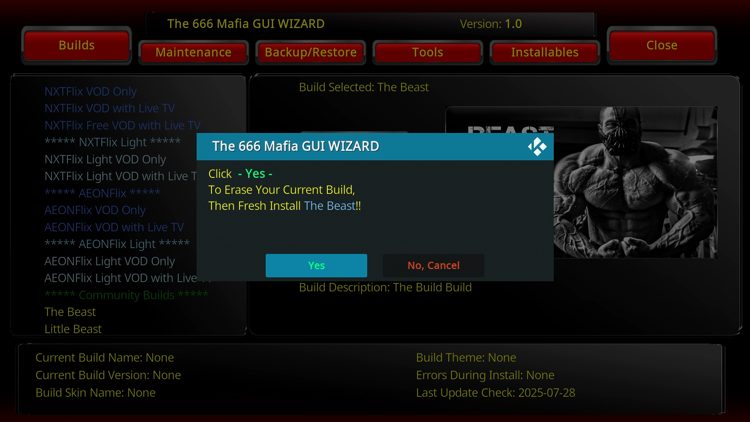
That’s where the Maintenance Tool comes in. This handy tool helps you clear cache, delete unnecessary files, and fix common problems with just a few clicks. You’ll learn exactly how to download and install the Maintenance Tool for Kodi, so you can enjoy uninterrupted streaming without the hassle.
Keep reading to discover the easiest steps to keep your Kodi in top shape.
Kodi Maintenance Tool Basics
Getting to know the basics of the Kodi Maintenance Tool can save you a lot of time and hassle. This tool is designed to keep your Kodi running smoothly by handling routine tasks automatically or with just a few clicks. Understanding what it does and why it’s useful helps you maintain a better streaming experience.
What Is A Maintenance Tool?
A Kodi Maintenance Tool is a specialized add-on or software that helps you manage the health and performance of your Kodi setup. It performs essential tasks like clearing cache, deleting temporary files, and managing add-ons. Think of it as your Kodi’s cleanup crew, working behind the scenes to prevent slowdowns and crashes.
Without this tool, Kodi can become sluggish as junk files accumulate. Installing a maintenance tool means you don’t have to remember to do these chores manually. It automates many processes, making it easier to keep your streaming smooth and uninterrupted.
Benefits Of Using Maintenance Tools
- Improved Performance:Regular cleaning removes cache and unwanted files that slow Kodi down.
- Extended Device Life:Reducing unnecessary load helps your device run cooler and last longer.
- Fewer Crashes:Keeping add-ons updated and removing conflicts lowers the chances of Kodi freezing or crashing.
- Space Management:Automatically deleting old data frees up storage, especially on devices with limited space.
- Convenience:You save time and effort by letting the tool handle routine maintenance tasks.
Have you ever been frustrated by Kodi suddenly freezing or buffering endlessly? Maintenance tools can help you avoid that by keeping everything optimized. Isn’t it worth a few minutes to install a tool that saves you hours of troubleshooting later?
Preparing Your Device
Preparing your device is crucial before downloading the Maintenance Tool for Kodi. It ensures the app runs smoothly and avoids errors during installation. Setting up the right environment on your device saves time and prevents future problems.
Follow these steps carefully to prepare your device for a successful download and installation process.
System Requirements
Check your device meets the minimum requirements for Kodi and the Maintenance Tool. These are essential to run the tool without issues.
- Operating System: Android 5.0 or higher, Windows 7 or later, macOS 10.12 or higher
- RAM: At least 2 GB for smooth performance
- Storage: Minimum 100 MB free space for installation
- Internet connection: Stable and fast for downloading files
Verify your device matches these criteria before proceeding to the next step.
Enabling Unknown Sources
Kodi add-ons and tools often come from third-party sources. Your device must allow installations from unknown sources to install the Maintenance Tool.
Enable this feature in your device settings. This step is necessary for Android and some other platforms.
- Go to Settings on your device
- Find Security or Privacy options
- Locate “Unknown Sources” or “Install unknown apps”
- Turn on the option to allow installations from unknown sources
Keep in mind to disable this setting after installation for better security.
Finding The Right Maintenance Tool
Finding the right maintenance tool for Kodi can make a huge difference in how smoothly your streaming experience runs. You want a tool that’s reliable, easy to use, and packed with useful features. But with so many options out there, how do you pick the one that fits your needs without risking your device’s security?
Popular Maintenance Tools For Kodi
Some maintenance tools have stood out among Kodi users for their effectiveness and ease of use. These tools help you clear cache, remove unused files, and keep Kodi running fast.
- Ares Wizard– Known for its all-in-one approach, it offers cleaning, backups, and speed tests.
- Indigo– A favorite for its simplicity, it provides maintenance tasks and troubleshooting guides.
- OpenWizard– Offers cleaning options plus add-on management features.
Choosing between these depends on what you need most. Do you want a tool focused on cleaning, or one that also helps with add-ons and backups?
Where To Download Safely
Downloading from the right source is crucial. Many Kodi tools come from third-party repositories, which can sometimes carry risks.
Here are safe ways to download your maintenance tool:
- Use official Kodi forums or community recommendations to find trusted links.
- Download from well-known repositories like Ares Project or TVAddons.
- Avoid random websites or links shared in unofficial forums or social media.
Have you ever downloaded a tool only to find it full of bugs or worse, malware? Staying within trusted sources saves you from headaches and keeps your device secure.

Credit: www.comparitech.com
Downloading The Maintenance Tool
Downloading the Maintenance Tool for Kodi is a straightforward process that can significantly enhance your Kodi experience. This tool helps keep your system clean and running smoothly by managing cache, deleting unnecessary files, and optimizing performance. Understanding how to download it correctly ensures you avoid common pitfalls and get the most out of your media setup.
Step-by-step Download Process
Start by opening Kodi on your device and navigating to the Settingsmenu.
Next, go to File Managerand select Add Source. Here, you will enter the URL of the repository hosting the Maintenance Tool.
- Make sure to enter the URL exactly as provided to avoid errors.
- Name the source something memorable, like “Maintenance Repo”.
Return to the main menu and go to Add-ons. Choose Install from zip fileand select the source you just added.
After the repository installs, select Install from repository. Find the Maintenance Tool within the repository’s add-ons list and click Install.
Once installed, you can access the Maintenance Tool from your add-ons menu to start cleaning and optimizing Kodi.
Troubleshooting Download Issues
If the download doesn’t start or the installation fails, double-check the repository URL for typos. A small error can prevent Kodi from locating the source.
Sometimes, a slow or unstable internet connection causes interruptions. Try restarting your router or switching to a more reliable network.
Enable Unknown Sourcesin Kodi’s settings if you haven’t already. This setting allows installation of add-ons from third-party sources.
Have you ever encountered an error code during installation? Note the code and search for it online—Kodi’s community forums often have quick fixes.
If the problem persists, try clearing Kodi’s cache or reinstalling the app to remove any corrupted files blocking the process.
Installing The Maintenance Tool On Kodi
Installing the Maintenance Tool on Kodi is a straightforward process that can significantly improve your streaming experience. This tool helps keep Kodi running smoothly by clearing cache, managing backups, and performing essential updates. Let’s walk through the key steps to get it up and running on your device.
Adding The Repository
First, you need to add the repository that hosts the Maintenance Tool. Open Kodi and navigate to Settings > System > Add-ons. Enable Unknown Sourcesto allow installation from third-party sources.
Next, go to Settings > File Manager > Add Source. Enter the URL of the repository carefully—mistyping it can lead to errors. Name the source something memorable, like “Maintenance Repo,” so you can easily find it later.
Installing From Zip File
After adding the repository source, return to the Kodi home screen and select Add-ons > Install from zip file. Find the source name you just added and click on it.
Locate the repository zip file inside the folder and select it to start the installation. You will see a notification once the repo is installed successfully. This step is crucial because it provides access to the Maintenance Tool addon.
Verifying Installation
Once the repository is installed, choose Install from repositoryfrom the Add-ons menu. Look for the Maintenance Tool within the repository’s list.
Click on the tool and hit Install. After installation, you can find it under Add-ons > Program Add-ons.
Open the Maintenance Tool to verify it works without issues. If it launches correctly, you’re all set to keep your Kodi system clean and optimized. Have you noticed any performance improvements after using this tool?

Credit: troypoint.com
Using The Maintenance Tool
Using the Maintenance Tool in Kodi transforms how you keep your media center running smoothly. It’s designed to handle routine tasks that many users overlook, yet these tasks have a big impact on performance and stability. Let’s look at some practical ways you can use this tool to improve your Kodi experience.
Cleaning Cache And Thumbnails
Cache and thumbnails build up quickly in Kodi, slowing down the interface and causing playback issues. The Maintenance Tool lets you clear these cluttered files with just a few clicks.
Imagine opening Kodi after weeks of heavy use, and everything feels sluggish. Cleaning the cache frees up memory, making the app more responsive. Removing old thumbnails also speeds up browsing through your media library.
- Open the Maintenance Tool and select the cache cleaning option.
- Choose to clear cache files and unwanted thumbnails separately or together.
- Run the cleaning process and watch the freed space increase.
Have you noticed Kodi slowing down over time? Regular cache and thumbnail cleaning can prevent that.
Managing Add-ons
Add-ons extend Kodi’s functionality but can become outdated or incompatible, causing crashes or errors. The Maintenance Tool helps you manage these add-ons efficiently.
You can quickly see which add-ons need updates or remove those you no longer use. This keeps your Kodi setup lean and stable.
- Access the add-on manager within the Maintenance Tool.
- Review installed add-ons and check for available updates.
- Choose to update or uninstall add-ons based on your needs.
Think about the last time an add-on caused problems—could regular management have prevented that?
Backing Up Kodi Data
Backing up your Kodi data safeguards your settings, libraries, and add-ons from accidental loss. The Maintenance Tool makes creating backups simple and reliable.
It allows you to schedule backups or create them on demand, so your personalized Kodi setup stays protected. This is especially useful if you experiment with new add-ons or skins.
- Open the backup section in the Maintenance Tool.
- Select the data you want to save, like settings, add-ons, or media libraries.
- Choose a backup location and start the process.
When was the last time you lost Kodi settings and wished you had a backup? This tool ensures that never happens again.
Keeping The Tool Updated
Keeping your Maintenance Tool for Kodi updated is essential for smooth performance and security. Updates often fix bugs and add new features that improve your experience. Ignoring updates can lead to crashes or compatibility issues with Kodi’s latest versions.
Checking For Updates
To ensure your tool is running the latest version, regularly check for updates manually. Open the Maintenance Tool within Kodi and look for an “Update” or “Check for Updates” option in the settings menu. This quick check can save you from unexpected problems later.
If you spot an available update, install it right away. It usually only takes a few clicks and a moment of your time. Keeping this habit can prevent many common Kodi issues related to outdated tools.
Automatic Update Settings
Most Maintenance Tools offer an option to enable automatic updates. Turning this feature on means you won’t need to remember to check for updates yourself. The tool will download and install updates silently in the background.
Automatic updates keep your tool current without interrupting your Kodi sessions. However, some users prefer manual updates to control when changes happen. Think about your usage pattern and choose the method that fits best.
Have you ever missed a critical update that caused Kodi to act up? Setting automatic updates might just be the safeguard you need to avoid that frustration.
Safety Tips And Best Practices
Downloading a maintenance tool for Kodi helps keep the app running smoothly. Following safety tips and best practices protects your device. It also ensures the tool works as expected. Careful steps prevent unwanted issues like malware or crashes. Keep your Kodi experience safe and efficient with simple habits.
Avoiding Malware
Only download maintenance tools from trusted sources. Official Kodi forums and reputable websites are safer choices. Avoid links from unknown emails or suspicious ads. Always scan downloaded files with antivirus software. Check user reviews and ratings before downloading. Avoid tools that ask for unnecessary permissions. Keep your device’s security settings active. These steps reduce the risk of malware infections.
Regular Maintenance Schedule
Set a routine to clean and update Kodi. Regular checks improve performance and prevent errors. Clear cache and temporary files often. Update add-ons and the maintenance tool itself. Restart Kodi after maintenance tasks. A simple schedule keeps Kodi stable and fast. Use reminders or calendar alerts to stay consistent.

Credit: www.comparitech.com
Frequently Asked Questions
What Is The Maintenance Tool For Kodi?
The Maintenance Tool for Kodi is a utility that helps clean cache, manage add-ons, and optimize Kodi performance. It ensures smooth streaming by removing unnecessary files and fixing common issues. This tool is essential for maintaining Kodi’s efficiency and stability.
How Do I Download The Maintenance Tool For Kodi?
To download the Maintenance Tool, visit a trusted Kodi repository or official add-on source. Use Kodi’s interface to browse add-ons, search for “Maintenance Tool,” and install it directly. Always download from secure and verified sources to avoid malware.
Is The Maintenance Tool Safe To Use With Kodi?
Yes, the Maintenance Tool is safe when downloaded from official Kodi repositories. It does not harm your device or data. Ensure you update the tool regularly to benefit from the latest features and security patches.
Can The Maintenance Tool Improve Kodi’s Streaming Speed?
Yes, by clearing cache and removing junk files, the Maintenance Tool can improve streaming speed. It optimizes Kodi’s performance, reducing buffering and lag. Regular maintenance keeps your Kodi experience smooth and fast.
Conclusion
Downloading the Maintenance Tool for Kodi simplifies system management. It ensures smooth performance and enhanced user experience. Follow the steps outlined to get the tool easily. This tool helps maintain Kodi efficiently by clearing cache and managing add-ons. Regular maintenance keeps Kodi running smoothly.
Protect your system and enjoy hassle-free streaming. Implementing these simple actions can lead to a more enjoyable Kodi experience. Remember, consistent upkeep is key to optimal performance. Keep your Kodi experience seamless and stress-free with the Maintenance Tool. Enjoy streaming without interruptions.
Keep your device healthy and your content accessible.