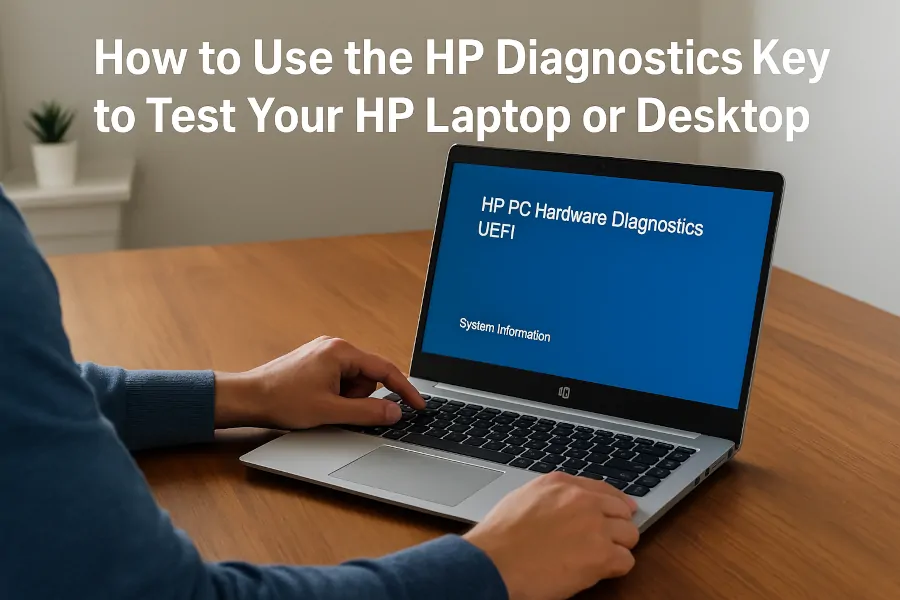
Have you ever wondered if your HP computer is running at its best? What if there was an easy way to catch problems before they turn into costly repairs?
That’s where HP Hardware Diagnostic Tools Scheduled Maintenance comes in. This powerful feature helps you keep your device healthy by regularly checking its key components. You’ll discover exactly what these tools do, why they matter for your computer’s performance, and how you can use them to save time and money.
Keep reading to unlock the secrets to a smoother, more reliable HP experience.

Credit: www.hp.com
Hp Hardware Diagnostic Tools
HP Hardware Diagnostic Tools are essential for keeping your computer’s hardware in check. These tools help you find issues early before they become serious problems. Whether you are a casual user or a professional, understanding these tools can save you time and money.
Types Of Diagnostic Tools
HP offers several diagnostic tools designed to test different parts of your computer. These include:
- HP PC Hardware Diagnostics UEFI:A tool that runs outside the operating system to test hardware components like memory, hard drive, and processor.
- HP Support Assistant:A software tool that provides automated updates and runs diagnostics within Windows.
- HP Battery Check:Focuses specifically on the condition and health of your laptop’s battery.
- HP System Event Utility:Monitors system events and alerts you to hardware problems.
Each tool targets specific hardware parts, so choosing the right one depends on what issues you suspect. Have you ever wondered if your laptop’s slow performance might be due to hardware failures rather than software?
Features And Capabilities
These diagnostic tools come packed with useful features that make maintenance straightforward and effective.
- Comprehensive Testing:They check critical components like RAM, CPU, hard drives, and even network adapters.
- Easy-to-Use Interface:Designed for users of all levels, many tools have step-by-step guides that simplify troubleshooting.
- Automatic Reporting:After running tests, the tools generate detailed reports that explain the health status and suggest next steps.
- Scheduled Maintenance:You can set regular scans to catch problems early without interrupting your workflow.
Imagine catching a failing hard drive before it completely stops working. That’s the power of scheduled diagnostics.

Credit: support.hp.com
Scheduled Maintenance Importance
Scheduled maintenance is more than just a routine check-up for your HP device. It plays a crucial role in keeping your hardware running smoothly and efficiently. Ignoring this maintenance can lead to unexpected breakdowns and costly repairs.
By setting regular intervals for HP Hardware Diagnostic Tools to run, you ensure that potential issues are caught early. This proactive approach saves time and frustration by preventing problems before they escalate.
Benefits For Hp Devices
Regular scheduled maintenance helps your HP device perform at its best. It keeps the system stable and reduces slowdowns by identifying and resolving hardware glitches early.
- Improves device lifespan by monitoring component health
- Enhances system reliability with timely alerts
- Maintains optimal performance through routine checks
When was the last time you ran a full diagnostic on your HP device? Staying ahead with maintenance can make a noticeable difference in how your device handles everyday tasks.
Preventing Hardware Failures
Hardware failures can strike without warning and disrupt your workflow. Scheduled diagnostics catch signs of wear and tear before they become serious failures.
- Detects failing hard drives early to avoid data loss
- Monitors battery health to prevent sudden shutdowns
- Checks memory and processor status to avoid crashes
Imagine losing important work because your device shut down unexpectedly. Regularly scheduled diagnostics reduce this risk by giving you a chance to fix issues in time.
Setting Up Scheduled Maintenance
Setting up scheduled maintenance for HP Hardware Diagnostic Tools helps keep your computer healthy. It runs checks automatically, finding problems early. This setup saves time and avoids sudden breakdowns. Follow these steps to configure and select the best schedule for your needs.
Configuring Diagnostic Tools
Start by opening the HP Hardware Diagnostic Tools on your device. Look for the option to schedule tests or maintenance. You can choose which tests to run, like memory or hard drive checks. Set notifications to alert you if any issue appears. Save your settings to activate the schedule.
Choosing Maintenance Frequency
Decide how often the diagnostic tests should run. Frequent checks catch problems sooner but may use more system resources. Less frequent checks save resources but risk missing early signs of failure. Consider your usage pattern and device age to pick the best interval.
- Weekly for heavy users or older devices
- Monthly for regular use
- Quarterly for light use or new devices
This balance helps keep your computer in good shape without slowing it down.
Running Diagnostics
Running diagnostics with HP Hardware Diagnostic Tools is a crucial part of scheduled maintenance. It helps you catch hardware issues before they become serious problems. Knowing how to run these diagnostics effectively saves time and reduces downtime for your device.
Step-by-step Process
Start by restarting your HP computer and pressing the Esckey repeatedly to open the Startup Menu.
Select F2to launch the HP PC Hardware Diagnostics UEFI.
Choose between Quick Testor Extensive Test. The Quick Test checks basic hardware components and takes just a few minutes.
The Extensive Test digs deeper, scanning hard drives, memory, and other parts thoroughly. This can take up to an hour depending on your system.
Follow the on-screen instructions carefully. If a test fails, the tool often provides an error code for easier troubleshooting.
Interpreting Results
Once the diagnostic test finishes, pay close attention to the results screen. A Passmeans your hardware is functioning correctly.
If you see a Failor error code, note it down. This code is valuable when seeking support or replacement parts.
Some diagnostics also suggest next steps, like running additional tests or contacting HP support.
Don’t ignore even minor warnings. Early alerts can prevent unexpected hardware failures later.
Troubleshooting Common Issues
Troubleshooting common issues with HP Hardware Diagnostic Tools Scheduled Maintenance helps keep your system running smoothly. These tools check hardware components and report problems early. Understanding how to address errors can save time and prevent bigger problems.
Many issues arise during diagnostic scans. Identifying error codes and knowing their solutions is key. Some problems may need professional help if they persist after basic fixes.
Error Codes And Solutions
HP diagnostic tools generate specific error codes for different hardware faults. Each code points to a particular problem area. Use these codes to find clear solutions quickly.
- Code 200: CPU Failure– Restart your computer and rerun the test. If it repeats, check for overheating or hardware damage.
- Code 501: Memory Failure– Reseat or replace your RAM modules. Run memory tests again to confirm.
- Code 600: Hard Drive Error– Backup data immediately. Use disk repair tools or consider replacing the drive.
- Code 700: Battery Issue– Calibrate the battery or replace it if it no longer holds a charge.
Refer to the official HP support site for a complete list of codes and troubleshooting steps. This helps you solve issues without guesswork.
When To Contact Support
Contact HP support if error codes persist after troubleshooting. Professional help ensures accurate diagnosis and repair. Some hardware faults require expert tools or parts.
Seek support when:
- The same error repeats after multiple fixes.
- Hardware components show physical damage.
- System performance drops drastically without clear cause.
- You feel unsure about performing repairs yourself.
HP support can guide you through advanced solutions or warranty claims. Early contact saves time and protects your device.
Credit: support.hp.com
Optimizing Device Performance
Optimizing device performance keeps your HP computer running smoothly. Regular care helps prevent slowdowns and errors. Scheduled maintenance with HP Hardware Diagnostic Tools can find issues early. This saves time and avoids costly repairs. Proper upkeep extends the life of your device and improves user experience.
Regular Maintenance Tips
- Run HP Hardware Diagnostic Tools regularly to check system health.
- Clean dust from vents and fans to prevent overheating.
- Delete unnecessary files to free up disk space.
- Restart your computer often to refresh system processes.
- Check battery health if using a laptop to ensure longevity.
Updating Hardware Drivers
Hardware drivers connect your device’s components with the operating system. Outdated drivers cause performance problems and crashes. Use HP support tools to find the latest driver updates. Install updates carefully to improve hardware functionality. Updated drivers fix bugs and add new features.
Frequently Asked Questions
What Are Hp Hardware Diagnostic Tools?
HP Hardware Diagnostic Tools are software utilities designed to test and diagnose hardware issues on HP devices. These tools help users identify problems with components like the hard drive, RAM, and motherboard. Regular use of these tools ensures your HP hardware remains in optimal condition, enhancing device performance.
How Does Scheduled Maintenance Benefit Hp Devices?
Scheduled maintenance helps in early detection of potential hardware issues in HP devices. By regularly scanning and diagnosing components, it prevents unexpected failures. This proactive approach ensures devices run smoothly, extends their lifespan, and maintains optimal performance, ultimately providing a seamless user experience.
How Often Should Hp Diagnostics Be Run?
Running HP diagnostics once a month is recommended for optimal device performance. Regular checks help identify potential hardware issues early, preventing major failures. A monthly schedule balances thoroughness and convenience, ensuring your device remains in good working condition without frequent interruptions.
Can Hp Diagnostic Tools Detect All Issues?
HP diagnostic tools can detect most common hardware issues but may not catch every problem. They are efficient for identifying issues with major components like the hard drive, RAM, and motherboard. However, some complex or intermittent issues might require professional diagnosis beyond these tools’ capabilities.
Conclusion
Hp Hardware Diagnostic Tools Scheduled Maintenance helps keep your computer healthy. It finds problems early and saves time. Running these tools often can stop big issues later. You get clear info about your hardware’s state. This helps you decide when to repair or replace parts.
Regular checks make your device run smoother. No need to worry about sudden failures. Stay on top of your PC’s health with simple steps. It’s an easy way to protect your investment and work.