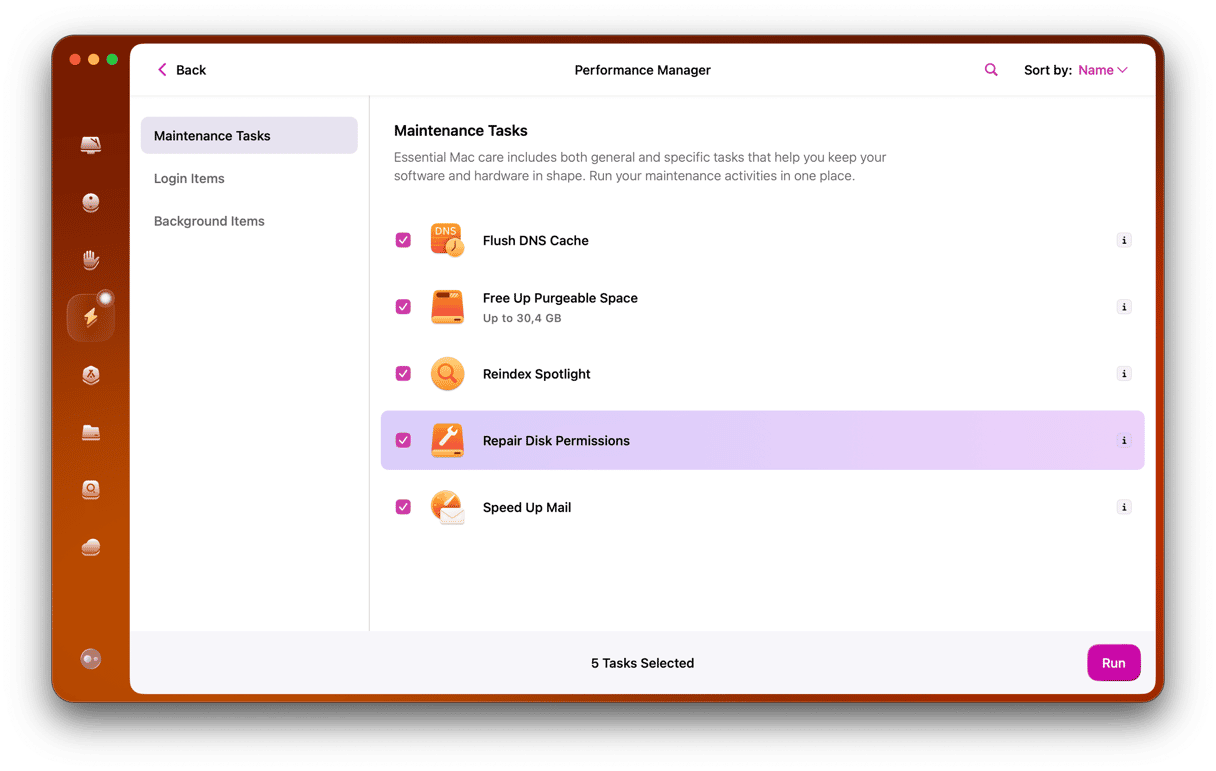
Have you ever wondered why your Mac sometimes slows down or acts a little strange? The answer might lie in how well you take care of it.
That’s where the Maintenance Tool on Mac comes in. This handy feature helps keep your computer running smoothly by fixing small issues before they become big problems. If you want your Mac to stay fast and reliable, understanding this tool is a must.
Keep reading, and you’ll discover how to use the Maintenance Tool to boost your Mac’s performance and avoid frustrating slowdowns.
Credit: macpaw.com
Maintenance Tools On Mac
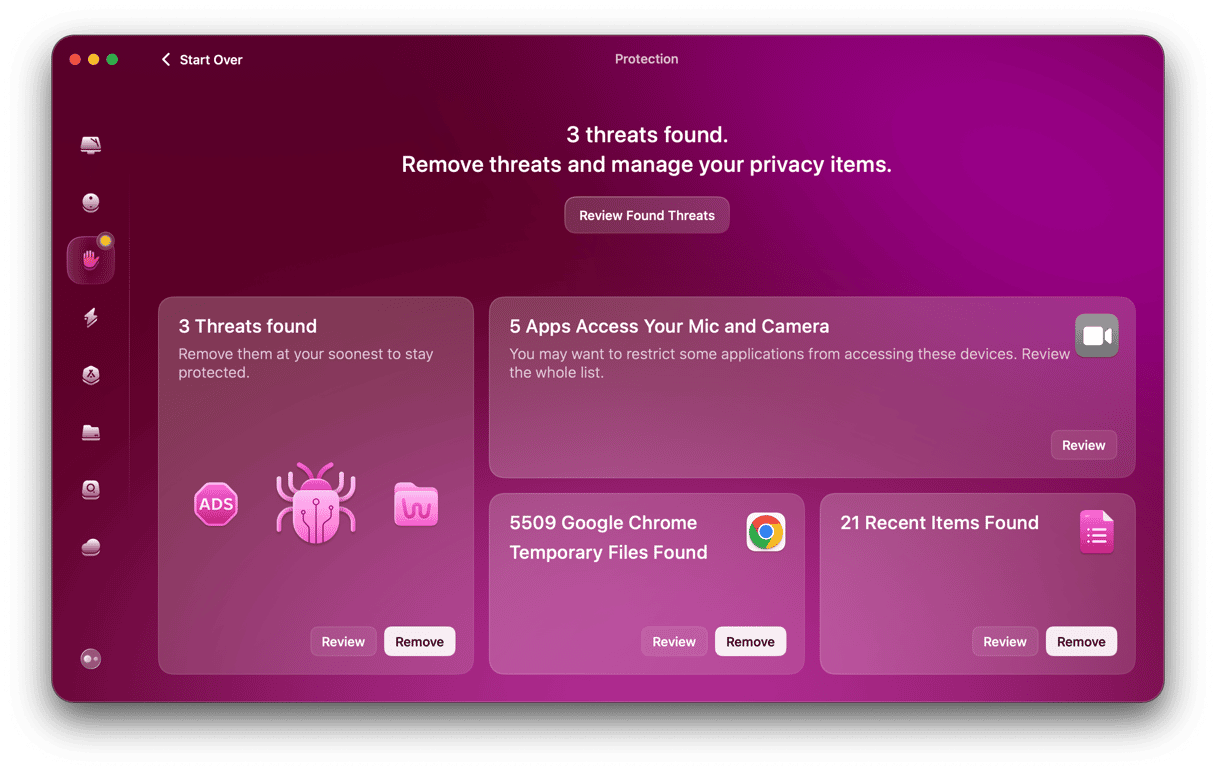
Maintenance tools on Mac help keep your system running smoothly by handling routine tasks like cleaning up junk files, optimizing performance, and repairing disk errors. These tools prevent minor issues from turning into major problems that slow down your workflow. Understanding the different types of maintenance tools can save you time and extend your Mac’s lifespan.
Common Types Of Tools
You’ll find maintenance tools that focus on various aspects of your Mac’s health. Some clean up storage by removing caches, logs, and unused files. Others repair disk permissions and check for file system errors to avoid crashes.
- Disk Cleanup Tools:Free up space by deleting temporary files and duplicates.
- System Optimizers:Speed up your Mac by managing startup programs and clearing RAM.
- Disk Repair Utilities:Fix corrupt files and errors in your storage drives.
- Backup and Recovery Tools:Help you create backups and restore your system if needed.
Choosing the right combination of these tools can keep your Mac feeling like new. Have you ever noticed your Mac slowing down without a clear reason? Running these tools regularly can often fix such hidden issues.
Built-in Vs Third-party Options
Your Mac already comes with some built-in tools designed to maintain its health. Disk Utility, for example, allows you to check and repair disks. Activity Monitor helps identify apps that consume excessive resources.
While built-in options are reliable and free, they sometimes lack advanced features. That’s where third-party maintenance tools step in. Apps like CleanMyMac or OnyX offer more detailed cleaning, automation, and user-friendly interfaces.
However, not all third-party tools are created equal. Some might promise a lot but deliver little or even cause issues. Always research and choose tools with strong reputations and positive user reviews. What tasks do you find the built-in tools can’t handle well enough on your Mac?
Key Features To Look For
Choosing the right maintenance tool for your Mac means knowing what features really matter. These tools can do a lot more than just free up space—they keep your system healthy, secure, and running smoothly. But which functions should you focus on to get the best results?
Disk Cleanup And Optimization
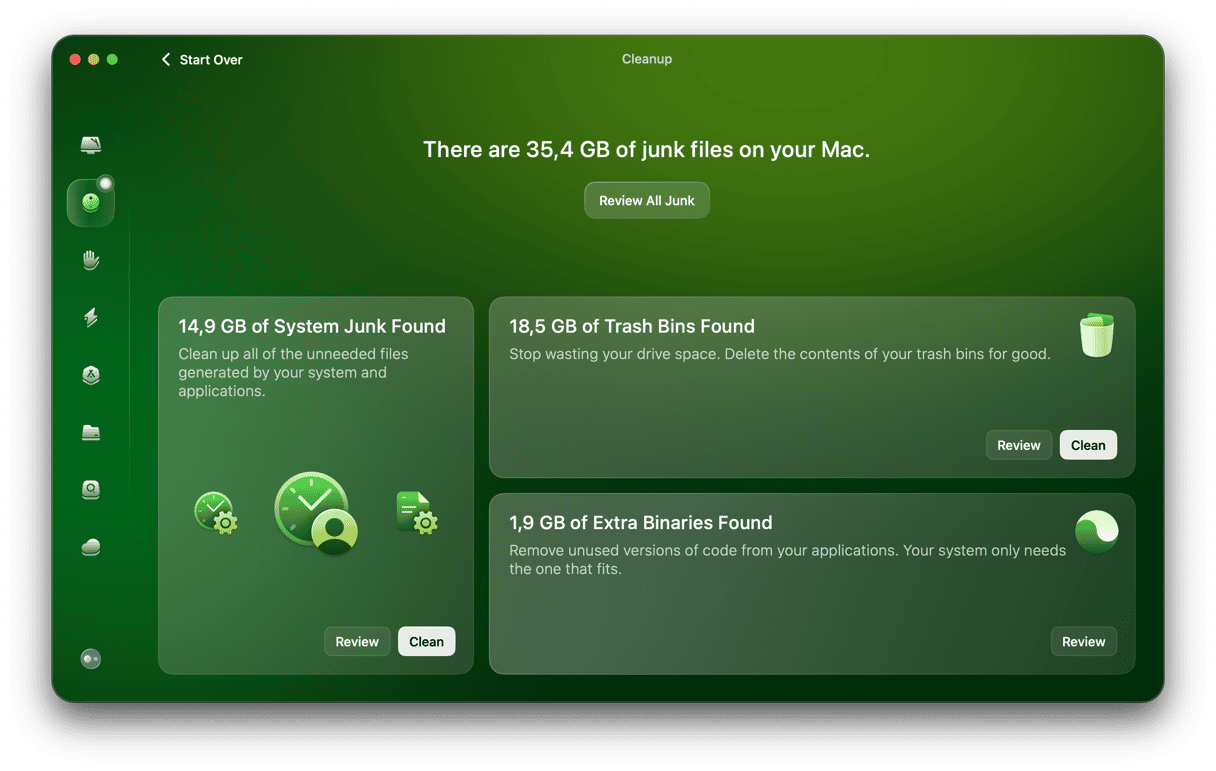
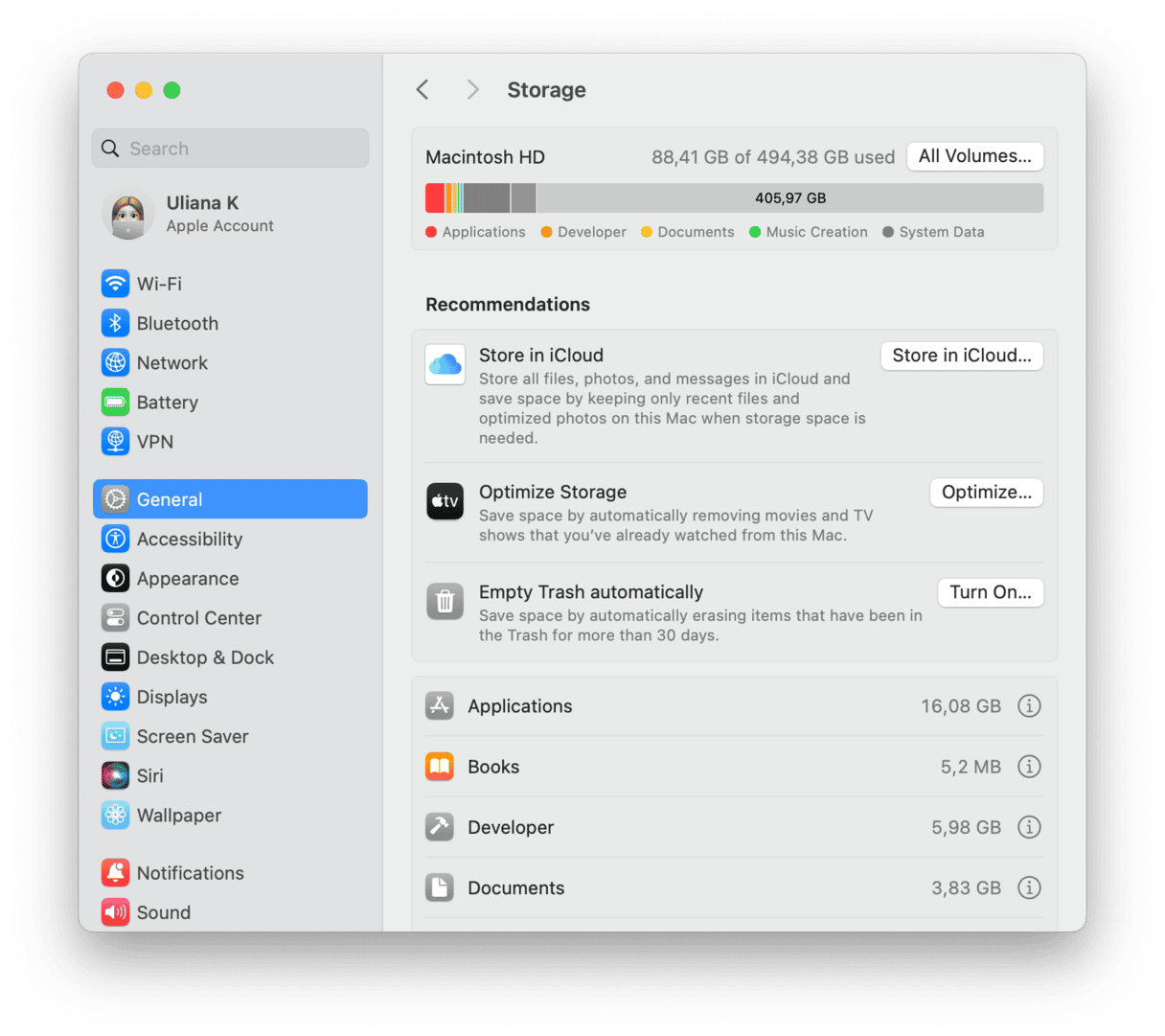
Look for a tool that can quickly identify and remove junk files cluttering your hard drive. Temporary files, cache, and outdated logs can silently hog space and slow down your Mac without you noticing.
Optimization features, like defragmentation or freeing up RAM, help your Mac perform faster during everyday tasks. Have you ever felt your Mac lag after installing many apps? That’s a sign your system needs this kind of cleanup.
System Monitoring
Good maintenance tools offer real-time insights into your Mac’s health. This includes CPU usage, memory consumption, and battery status.
Monitoring these elements helps you spot issues before they become serious problems. For example, if an app is consuming too much CPU, you can act before it overheats or drains your battery.
Privacy Protection
Your Mac holds a lot of personal information, from browsing history to saved passwords. A solid maintenance tool will have features to clear this data safely and regularly.
Some tools also help manage permissions and detect tracking cookies that invade your privacy. Do you know what data your Mac is sharing without your knowledge? Privacy protection features give you control over that.
Popular Maintenance Tools For Mac
Mac maintenance tools keep your system clean and fast. They clear junk files, optimize performance, and fix disk errors. Many tools help automate these tasks, saving time and effort.
Some tools come free with basic features. Others offer advanced functions with paid versions. Choosing the right tool depends on your needs and budget.
Free Tools
- OnyX: A trusted tool for cleaning and maintenance. It verifies system files and clears caches.
- CleanMyMac X (Trial): Offers a free trial to scan and remove junk files.
- Disk Utility: Built-in app for repairing disks and managing storage.
- AppCleaner: Helps remove apps completely with all related files.
- Maintenance Scripts: Runs system cleanup scripts regularly to keep your Mac healthy.
Paid Solutions
- CleanMyMac X: Full version offers deep cleaning, malware removal, and optimization tools.
- Drive Genius: Focuses on disk health, defragmentation, and performance monitoring.
- MacKeeper: Combines cleaning, security, and performance features in one package.
- Disk Drill: Mainly a data recovery tool with disk cleanup functions.
- TechTool Pro: Advanced diagnostics and repair tools for power users.
Credit: macpaw.com
How To Use Maintenance Tools Safely
Using maintenance tools on your Mac helps keep it running smoothly. These tools fix errors, clear caches, and optimize performance. Safe use is important to avoid data loss or system problems. Follow simple rules to protect your Mac and data.
Backup Before Maintenance
Always create a backup before running maintenance tools. Use Time Machine or other backup apps to save your files. A backup protects your data if something goes wrong during maintenance. This step is simple but crucial for safety.
Avoid Overuse
Do not run maintenance tools too often. Overusing them may cause unexpected issues or slow your Mac. Running these tools once a month or when you notice problems is enough. Regular use without excess keeps your Mac healthy.
Regular Scheduling
Set a regular schedule for maintenance tasks. Choose a time when you do not need your Mac urgently. Scheduling maintenance monthly or quarterly helps keep your system optimized. Consistency prevents build-up of errors and keeps performance steady.
Troubleshooting Common Issues
Troubleshooting common issues on a Mac can be easier with the right maintenance tools. These tools help fix problems without needing expert help. They clean up your system and improve how your Mac works. Below are some typical issues users face and how maintenance tools can help.
Slow Performance
Macs can slow down due to cluttered system files and background tasks. Maintenance tools clear caches and remove unnecessary files. This frees up memory and speeds up your Mac. They also fix disk permissions that can cause delays. Running these tools regularly keeps your Mac running smoothly.
Storage Problems
Storage gets full with old files, logs, and duplicates. Maintenance tools scan your drive for junk files. They help you delete large or useless files safely. Some tools also find duplicate photos and documents. Clearing storage space improves overall Mac performance.
App Crashes
Apps may crash due to corrupted files or conflicts. Maintenance tools check and repair damaged system files. They reset app caches and clear temporary data. This reduces crashes and improves app stability. Keeping your Mac clean helps apps run without issues.
Maximizing Mac Performance
Keeping your Mac running smoothly requires more than just occasional updates or restarts. Maximizing Mac performance means regularly tuning up your system to prevent slowdowns and crashes. With a few simple habits and tools, you can maintain speed and efficiency, making your Mac feel like new again.
Routine Maintenance Tips
Regular maintenance is key to avoiding unexpected slowdowns. Start by clearing out unnecessary files like old caches, logs, and downloads that pile up over time.
Use the built-in Disk Utility to verify and repair disk permissions. This helps prevent errors that can affect performance.
Don’t forget to update your software regularly. Updates often include fixes that improve stability and speed.
Optimizing Startup Items
Too many apps launching at startup can drag down your Mac’s boot time. Check which programs open automatically when you log in and disable those you don’t need.
You can manage startup items in System Preferences under Users & Groups. Click your user account, then select Login Items to remove or hide apps.
Reducing these items frees up memory and speeds up your Mac’s overall startup process. Have you noticed your Mac taking longer to start after installing new software?
Managing Extensions And Plugins
Extensions and plugins add useful features but can also consume resources and slow down your Mac. Regularly review them to decide which ones are truly necessary.
For browsers like Safari or Chrome, go to the extensions menu and disable or remove those you rarely use. This reduces background activity and speeds up browsing.
Don’t overlook system-wide plugins either. Some apps install helper tools that run in the background—make sure these are not overloading your CPU or memory.
Credit: macpaw.com
Frequently Asked Questions
What Is The Maintenance Tool On Mac?
The Maintenance Tool on Mac is a utility that optimizes system performance. It clears caches, repairs permissions, and improves overall speed. It helps keep your Mac running smoothly and prevents common issues.
How Does The Maintenance Tool Improve Mac Performance?
It cleans temporary files, clears system caches, and fixes disk permissions. This reduces system clutter and prevents errors. The result is faster startup times and smoother app operation.
Is The Maintenance Tool Safe To Use On Mac?
Yes, the Maintenance Tool is safe when used properly. It only removes unnecessary files and repairs system settings. Always use trusted tools from reputable developers to avoid problems.
When Should I Run The Maintenance Tool On My Mac?
Run the Maintenance Tool monthly or when experiencing slowdowns. It helps maintain system health and prevents buildup of junk files. Regular use keeps your Mac efficient and stable.
Conclusion
Understanding the Maintenance Tool on Mac is essential. It keeps your device running smoothly. Regular use ensures optimal performance. Your Mac stays efficient and reliable. Simple tasks like cleaning can prevent issues. No complicated steps required. Just a few clicks make a big difference.
A maintained Mac works faster. Less frustration with daily tasks. Easier file management and smoother operations. So, take a few minutes regularly. Your Mac will thank you. Stay proactive. Keep your Mac in top shape always. Enjoy a hassle-free experience.