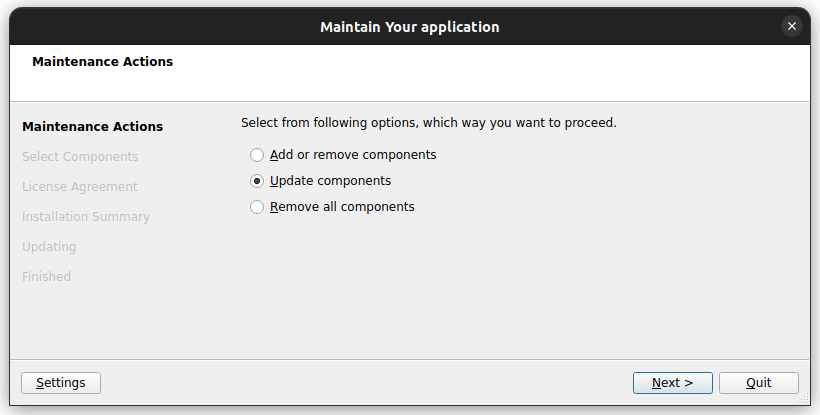
Are you looking for the Qt Maintenance Tool but don’t know where to find it? You’re in the right place.
Getting the right tool quickly can save you time and frustration. The Qt Maintenance Tool is essential for managing your Qt installation smoothly, whether you want to update, add components, or fix issues. You’ll discover exactly where to get the Qt Maintenance Tool and how to use it to keep your development environment running perfectly.
Keep reading—you’ll be glad you did.
Credit: www.qt.io
Qt Maintenance Tool Basics
The Qt Maintenance Tool is a key part of managing your Qt installation. It helps keep your software updated and organized. Understanding its basics saves time and avoids common issues.
What Is The Qt Maintenance Tool
The Qt Maintenance Tool is a small program that manages Qt installations. It allows you to add or remove Qt versions and components. It also keeps your Qt tools up to date. The tool runs on your computer and works with the Qt online installer. It makes managing Qt easier without needing to reinstall everything.
Why You Need It
The tool keeps your Qt setup clean and efficient. It helps avoid conflicts by managing different Qt versions. It also saves time by automating updates. Without it, updating Qt means manual downloads and installations. The tool also lets you add new components as projects grow. It ensures your development environment always has the right tools.
Credit: doc.qt.io
Finding The Tool Online
Finding the Qt Maintenance Tool online is easier than you might think, but knowing exactly where to look saves you time and hassle. This tool is essential for managing your Qt installations, updates, and add-ons efficiently. Let’s look at the best places you can get it directly from trusted sources.
Official Qt Website
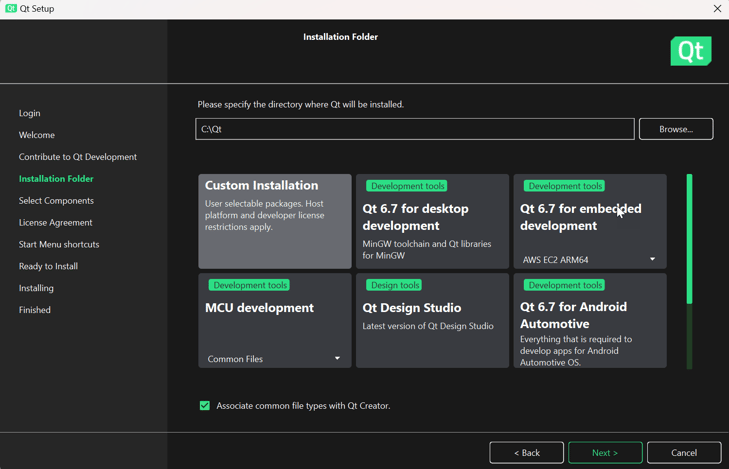
The safest and most reliable place to get the Qt Maintenance Tool is the official Qt website. Here, you can download the latest version of Qt, which typically includes the Maintenance Tool as part of the package.
Visit https://www.qt.io/downloadand choose the appropriate installer for your operating system. During installation, the Maintenance Tool is automatically added, allowing you to manage updates and components later without reinstalling everything.
Have you ever tried downloading software from third-party sites only to find outdated or unsafe versions? Sticking to the official source protects you from such issues and ensures you get the latest features and security fixes.
Qt Account Downloads
If you already have a Qt account, you can access the Maintenance Tool directly from your Qt Account dashboard. This area provides personalized access to all your downloads, including installers and tools.
Log in at https://account.qt.ioand navigate to the Downloads section. Here, you’ll find the Maintenance Tool as a separate download or bundled within your current Qt installation files.
Using your Qt account ensures you get tools matched precisely to your licenses and installed versions. Do you keep your Qt account details handy? It’s the quickest way to get updates and manage your development environment seamlessly.
Accessing The Tool Locally
Accessing the Qt Maintenance Tool locally is simple once Qt is installed on your computer. This tool helps manage your Qt installation by adding or removing components. It also updates Qt to newer versions without reinstalling everything.
You can find the Maintenance Tool in your system’s file folders. Knowing its location helps you run it anytime without searching again. The tool is included by default in most Qt installations.
After Qt Installation
After installing Qt, the Maintenance Tool usually appears in the same folder as Qt. It installs automatically with the Qt framework. No extra download is needed.
To access the tool, open your Qt installation directory. Look for a file named MaintenanceTool.exeon Windows or MaintenanceToolon macOS and Linux. Double-clicking this file launches the tool.
Common Installation Paths
The location of the Qt Maintenance Tool depends on your operating system and installation choices. Common paths include:
- Windows:
C:\Qt\orC:\Program Files\Qt\ - macOS:
/Users/username/Qt/or/Applications/Qt/ - Linux:
/home/username/Qt/or/opt/Qt/
Inside these folders, look for the Maintenance Tool executable file. This file runs the updater and installer interface for Qt.
Downloading Steps
Downloading the Qt Maintenance Tool is a straightforward process. It ensures you can update and manage your Qt installation efficiently. Follow the steps below to get started.
Creating A Qt Account
A Qt account is essential for accessing the Maintenance Tool. Visit the official Qt website to register. Use a valid email and create a strong password. After registration, verify your email to activate the account. This account helps you download installers and receive updates.
Selecting The Right Installer
Choose the installer that fits your operating system. Qt offers versions for Windows, macOS, and Linux. Download the online installer for the latest updates. Alternatively, use the offline installer if internet access is limited. Check system requirements before downloading to avoid issues.
Using The Tool After Download
Once you have downloaded the Qt Maintenance Tool, using it effectively can save you a lot of time and hassle. This tool is designed to keep your Qt environment up to date and tailored to your development needs. Let’s look at how you can manage your Qt versions and components easily after the initial download.
Updating Qt Versions
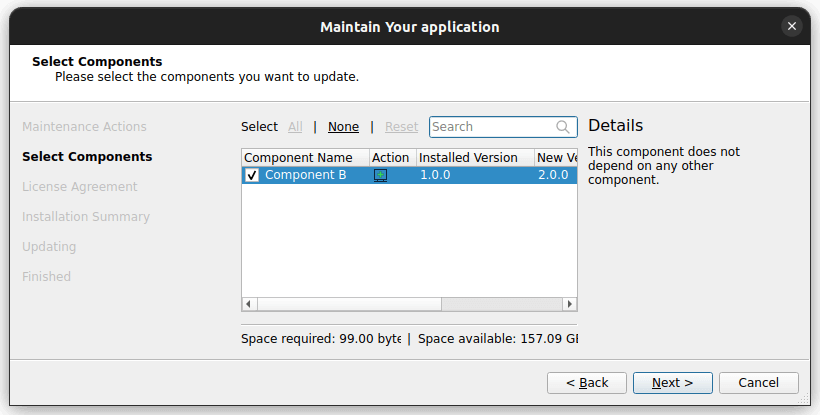
Keeping your Qt versions updated is essential to access the latest features and security patches. The Maintenance Tool simplifies this by showing available updates right after you launch it.
You can select the Qt versions you want to update or install new ones alongside your existing setups. This flexibility allows you to test your projects on different versions without uninstalling anything.
Have you ever faced issues because your development environment was outdated? Regularly updating Qt versions through the Maintenance Tool helps you avoid such pitfalls.
Adding Or Removing Components
Sometimes you only need specific modules or tools for your project. The Maintenance Tool lets you add or remove components, so your setup stays lean and efficient.
For instance, if you’re working on a mobile app, you might want to add Android or iOS support modules. Or, if you no longer need certain tools, removing them can free up space and reduce clutter.
This selective management ensures your Qt installation is customized exactly to your needs. What components do you use most, and have you considered trimming the ones you don’t?
Troubleshooting Download Issues
Downloading the Qt Maintenance Tool can sometimes hit unexpected snags. These issues can be frustrating, especially when you need quick access to updates or new components. Understanding the common obstacles and how to resolve them will save you time and keep your workflow smooth.
Network Problems
Network issues are a frequent cause of download failures. Your internet connection might be unstable, slow, or blocked by firewalls. Check if your connection works by visiting other websites or running a speed test.
If you are behind a corporate or school network, firewall settings might restrict the tool’s access. Try connecting to a different network or use a VPN to bypass restrictions. Also, verify if proxy settings are correctly configured within the Qt Maintenance Tool.
Have you ever wondered why some downloads stall midway? Often, it’s due to packet loss or interruptions in your network. Restarting your router or switching to a wired connection can improve stability and speed.
Permission Errors
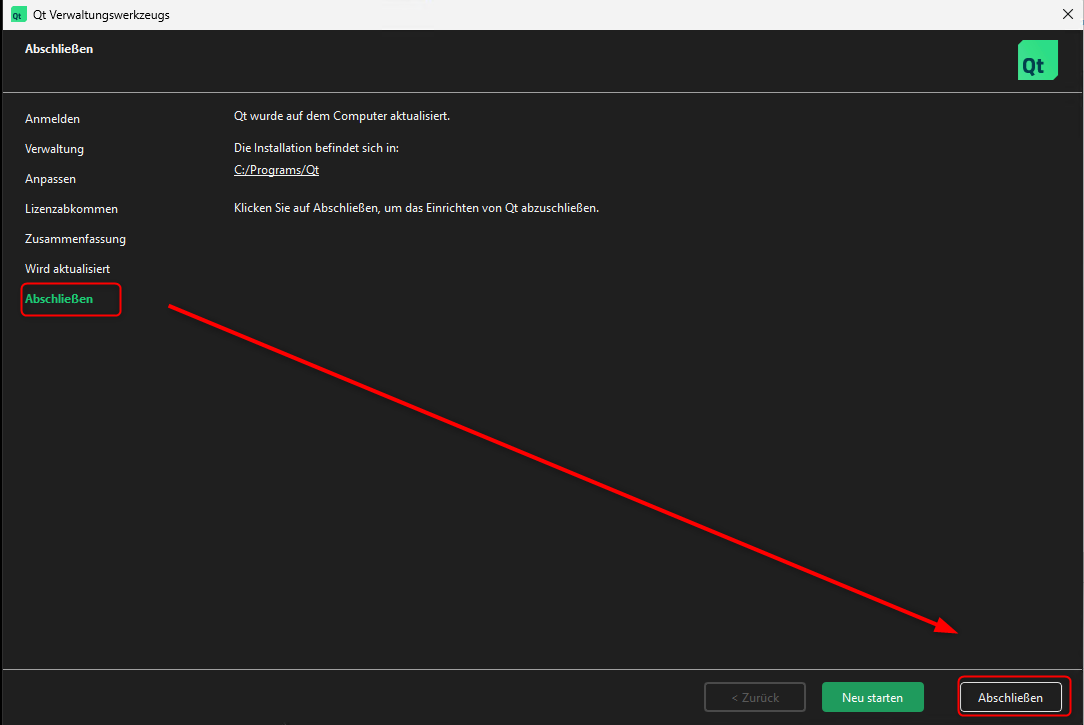
Permission errors can prevent the Qt Maintenance Tool from downloading or installing updates. This usually happens if you don’t have administrator rights on your computer. Running the tool as an administrator often solves this problem instantly.
Check the folder where Qt is installed. If the tool can’t write to this directory, it will fail to update. Adjusting folder permissions or choosing a different installation path might be necessary.
Are you using a shared or locked-down device? In such cases, system policies may block changes to software. Contact your system administrator to grant the required permissions or to perform the update on your behalf.
Credit: bugreports.qt.io
Frequently Asked Questions
Where Can I Download The Qt Maintenance Tool?
You can download the Qt Maintenance Tool from the official Qt website. It is included with all Qt online installers and versions. Access your Qt account to download or update the tool safely and securely.
How Do I Access The Qt Maintenance Tool On My Pc?
The Qt Maintenance Tool is located in the Qt installation directory. On Windows, find it under “C:\Qt\MaintenanceTool. exe. ” On macOS and Linux, it is inside the Qt folder. Launch it to update or modify your Qt installation.
Can I Update Qt Using The Maintenance Tool?
Yes, the Qt Maintenance Tool allows you to update your installed Qt components. Run the tool, select “Update components,” and follow the instructions to keep your Qt version current.
Is The Qt Maintenance Tool Free To Use?
Yes, the Qt Maintenance Tool is free with all Qt online installations. It manages your Qt setup without extra charges, helping you install, update, or uninstall components easily.
Conclusion
Finding the Qt Maintenance Tool is simpler than it seems. Visit the official Qt website. It’s the most reliable source. Ensure you download the correct version. Always keep it updated. This tool helps manage your Qt installations. Saves time and effort.
Improves software performance. Easy installation process. User-friendly interface. Remember, always verify the source. Avoid third-party sites. They might be unsafe. Stay informed with Qt’s official updates. Enjoy smoother project management. Now, you’re ready to enhance your Qt experience. Happy developing!