Have you ever wondered what happens behind the scenes when a website or app shows a “maintenance mode” message? If you’re a developer or just curious about tech, understanding maintenance mode in developer tools can save you time and frustration.
It’s not just a simple “down for repairs” sign—it’s a powerful feature that helps you manage updates, fix bugs, and keep your projects running smoothly. You’ll discover what maintenance mode really means, how it works, and why it’s essential for your development process.
Keep reading to unlock the secrets that can make your work more efficient and reliable.
Purpose Of Maintenance Mode
Maintenance Mode is a special state in developer tools. It allows developers to pause a website or app safely. The main goal is to fix issues or update features without disturbing users. This mode helps keep the user experience smooth and secure during changes.
When To Activate Maintenance Mode
Activate Maintenance Mode during major updates or fixes. It is useful when making backend changes that affect site functionality. Also, use it to prevent data loss during database updates. Maintenance Mode protects users from broken pages and errors. It ensures developers can work without interruptions or risks.
Benefits For Developers And Users
Maintenance Mode offers clear benefits for both developers and users. Developers get a safe space to test and fix problems. It reduces the risk of accidental errors reaching the live site. Users see a friendly message instead of broken content. This builds trust by showing the site is cared for. It also avoids confusion and frustration during updates.
How Maintenance Mode Works
Maintenance mode is a vital feature in developer tools. It temporarily disables user access to a website or application. This lets developers perform updates and fixes without disruption. The system reroutes visitors to a special page. It often shows a message explaining the downtime. Behind the scenes, maintenance mode controls access and visibility carefully.
Technical Mechanisms
Maintenance mode works by altering server or application settings. It intercepts incoming requests and redirects them. The server can serve a static maintenance page instead of the usual content. Sometimes, it uses .htaccess rules or configuration files to manage this. The system may also pause background jobs or database writes. This prevents errors during updates. Certain tools allow developers to whitelist IPs. These IPs can bypass maintenance mode to test changes.
Common Features And Settings
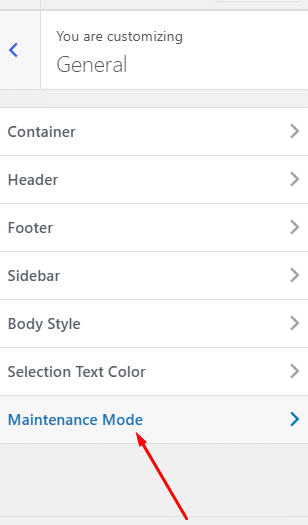
Most maintenance mode tools include customizable messages. These inform users about the downtime and expected duration. Some offer countdown timers to show when the site returns. Settings often include:
- Enable or disable maintenance mode with one click
- Allow access for specific IP addresses
- Choose which pages show the maintenance message
- Set automatic start and end times for maintenance
- Log visitor attempts during downtime
These features help developers manage updates smoothly. They keep visitors informed and reduce frustration.
Activating Maintenance Mode
Activating maintenance mode is a crucial step in managing your website or application during updates or troubleshooting. It temporarily restricts user access, preventing disruptions or errors while you work behind the scenes. Knowing how to activate this mode effectively ensures a smooth experience for both you and your visitors.
Steps In Popular Developer Tools
Each developer tool offers a unique way to enable maintenance mode, but the core idea remains the same: signal to users that the site is temporarily unavailable.
- WordPress:Use plugins like “WP Maintenance Mode” or add a snippet to the
functions.phpfile to redirect visitors to a maintenance page. - Laravel:Run the Artisan command
php artisan downin your terminal to activate maintenance mode quickly. - Drupal:Navigate to Configuration > Development > Maintenance Mode and check the box to enable it.
- Magento:Place a
maintenance.flagfile in the root directory or use the CLI commandbin/magento maintenance:enable.
Have you ever encountered a site showing unexpected errors during updates? Activating maintenance mode beforehand can save you from that embarrassment.
Best Practices For Activation
Activating maintenance mode isn’t just about flipping a switch. It’s about communicating clearly and minimizing impact.
- Inform your users:Display a clear and friendly message explaining the reason and expected downtime. This builds trust and reduces frustration.
- Schedule wisely:Choose low-traffic periods for maintenance to reduce the number of affected users.
- Test internally:Before enabling maintenance mode live, test the process in a staging environment to avoid surprises.
- Keep it brief:Only keep the site in maintenance mode as long as necessary. Prolonged downtime can hurt your SEO and user loyalty.
How often do you check if your maintenance mode message is clear enough? Sometimes, a simple tweak can make a big difference in how users perceive your site’s reliability.
Customizing Maintenance Mode
Customizing maintenance mode lets you control how your site behaves during updates or fixes. You can shape the visitor’s experience and keep them informed while you work behind the scenes. The options you choose can reduce frustration and maintain trust, even when your site isn’t fully accessible.
Designing Maintenance Pages
Your maintenance page is the face of your site during downtime. It should be clear, simple, and reflect your brand’s personality. Use concise messages to explain the situation and expected return time.
Adding your logo and brand colors keeps the page familiar and professional. Including a friendly message like, “We’re making improvements and will be back shortly!”helps set a positive tone.
Consider adding contact info or links to social media so visitors can reach out or stay updated. A clean layout with easy-to-read fonts improves user experience. Have you ever left a site because the maintenance page was confusing or boring?
Setting Time Limits And Notifications
Setting a clear time limit for maintenance helps manage visitor expectations. You can schedule the maintenance window in your developer tools to automatically switch modes on and off.
Notifications are key. Enable alerts for your team to stay informed about the maintenance status. You might also want to send a notification to users who subscribe, telling them when the site will be back online.
This approach avoids surprises and keeps everyone in the loop. Think about how frustrating it is to find a site down with no clue when it will return. Would you prefer a countdown timer or a simple message with a return time?
Troubleshooting Maintenance Mode
Troubleshooting maintenance mode is key to keeping your website stable. This mode temporarily disables site access for visitors. It allows developers to update or fix issues without disruption. Problems during this phase can cause longer downtime or errors. Quick identification and solution prevent major headaches. Understanding common issues helps you fix them fast. Careful planning avoids downtime pitfalls. This section guides you through typical problems and smart strategies to keep your site healthy during maintenance.
Common Issues And Fixes
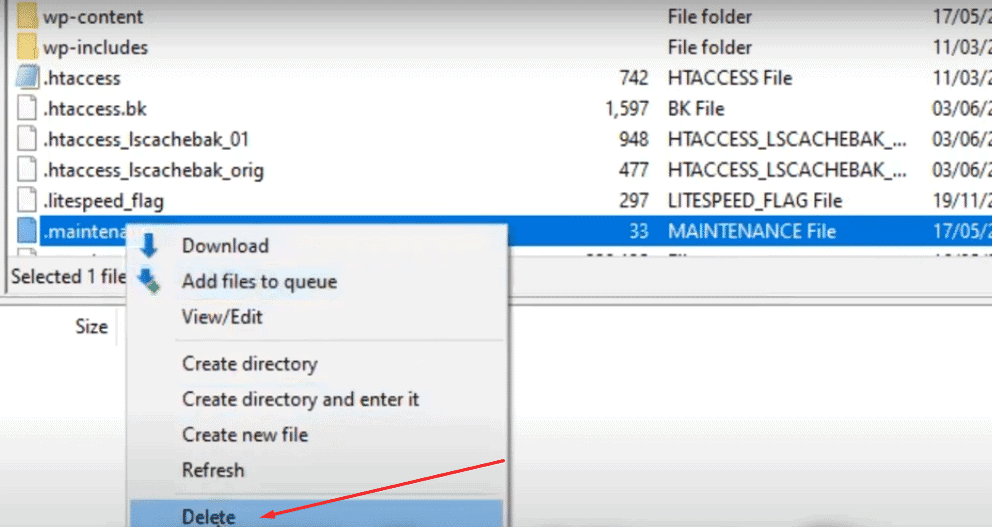
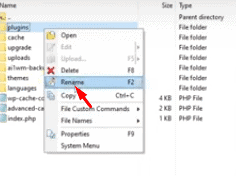
- Stuck in Maintenance Mode:Clear cache and restart your server. Check for incomplete update scripts.
- Error Messages Displayed:Review error logs for permission issues or missing files. Adjust file permissions as needed.
- Maintenance Page Not Showing:Verify maintenance mode files are in the correct directory. Ensure your web server is configured to display the maintenance page.
- Visitors See Broken Pages:Check if the maintenance page is properly formatted. Use simple HTML to avoid rendering issues.
- Automated Scripts Fail:Confirm cron jobs or deployment scripts pause during maintenance. Resume them after maintenance completes.
Avoiding Downtime Pitfalls
- Schedule maintenance during low traffic periods.
- Create a clear backup before starting any updates.
- Test maintenance mode on a staging site first.
- Communicate expected downtime with users in advance.
- Use a lightweight maintenance page to reduce server load.
- Monitor server performance during maintenance tasks.
- Set automatic timeout to exit maintenance mode if stuck.
- Keep logs of changes made during maintenance for review.
Credit: nexterwp.com
Real-world Use Cases
Maintenance mode is a useful feature in developer tools. It helps manage updates, fixes, and improvements with minimal disruption. Developers use it to pause normal operations and inform users about temporary downtime. This section explores real-world examples where maintenance mode plays a key role.
Examples From Web Development
Websites often enter maintenance mode during updates or server changes. This prevents users from accessing broken or incomplete pages. A simple maintenance page can explain the downtime and expected return time.
Common scenarios include:
- Applying security patches
- Upgrading software versions
- Fixing critical bugs
- Migrating databases
Maintenance mode protects user data and site functionality. It also helps avoid negative experiences and lost traffic.
Maintenance Mode In Mobile Apps
Mobile apps use maintenance mode to manage server-side updates or backend changes. Users see a message indicating temporary unavailability. This avoids app crashes or data sync issues.
Examples include:
- Updating APIs or services
- Fixing login or payment problems
- Deploying new features
- Performing database maintenance
Proper use of maintenance mode keeps apps reliable and user-friendly during changes.
Alternatives To Maintenance Mode
Maintenance mode can disrupt user experience by making websites temporarily unavailable. Developers use alternatives that keep sites live while updates happen. These methods help maintain uptime and improve user satisfaction.
Using Feature Flags
Feature flags allow developers to turn features on or off without downtime. Code changes are deployed but remain inactive until activated. This method enables testing new features with select users.
It reduces risk by isolating new features. Developers can fix issues without affecting the entire site. Feature flags provide flexibility to release updates gradually.
Blue-green Deployments
Blue-green deployments use two identical environments. One serves live traffic while the other hosts updates. Once updates are ready, traffic switches to the updated environment.
This switch is quick and seamless. It avoids downtime and allows easy rollback if problems occur. Users experience no interruption during the update process.
Credit: nexterwp.com
Credit: penninetechnolabs.com
Frequently Asked Questions
What Is Maintenance Mode In Developer Tools?
Maintenance mode temporarily disables a website or app for updates or fixes. It prevents user access while developers perform essential changes safely.
Why Use Maintenance Mode During Development?
Maintenance mode ensures users see a clear message, avoiding errors or broken features during updates. It maintains professionalism and user trust.
How Does Maintenance Mode Affect Website Seo?
Properly implemented maintenance mode uses HTTP status codes like 503. This tells search engines to return later, preserving SEO rankings.
Can Maintenance Mode Improve Website Security?
Yes, maintenance mode restricts access, reducing exposure to vulnerabilities during updates. It helps protect the site from attacks while changes are made.
Conclusion
Maintenance mode in developer tools is a vital feature. It helps keep your site functional during updates. Users enjoy a smoother experience without disruptions. This mode also aids developers in testing changes safely. Websites stay live while updates happen behind the scenes.
It’s essential for maintaining user satisfaction. With maintenance mode, errors are minimized. Developers can focus on improvements without worry. Understanding its role enhances your site’s reliability. This leads to fewer issues and happier users. Always use maintenance mode for a seamless experience.
Your website will thank you, and so will your users.