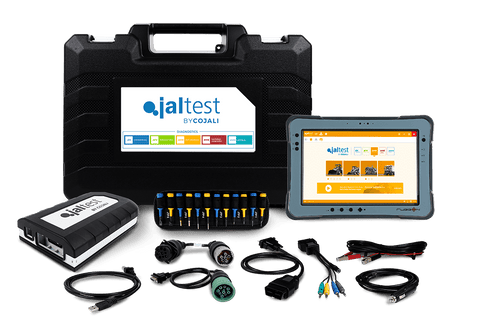
Are you tired of your computer running slow or crashing unexpectedly? You might not realize it, but your device could be struggling with hidden problems that slow it down or cause errors.
That’s where software diagnostic tools come in—they act like a health check-up for your computer, finding issues before they become serious. You’ll discover what these tools are, how they work, and why they are essential for keeping your computer in top shape.
Keep reading, and you’ll learn how to take control of your computer’s health with simple, effective solutions.
Purpose Of Software Diagnostic Tools
Software diagnostic tools serve as your computer’s health checkup system. Their main purpose is to identify and troubleshoot issues that could slow down or damage your machine. These tools help you maintain smooth operation by revealing hidden problems before they escalate.
Detecting Hardware Issues
Hardware problems can be tricky to spot until they cause serious trouble. Diagnostic tools scan components like the hard drive, RAM, and CPU to detect faults early. Have you ever experienced sudden crashes or freezes? These tools can pinpoint if failing hardware is the culprit.
For example, a tool might flag overheating in your CPU or report bad sectors on your hard drive. Catching such issues early can save you from data loss and costly repairs.
Identifying Software Conflicts
Sometimes your computer slows down because programs fight for resources or clash with each other. Diagnostic tools analyze running processes and installed software to spot conflicts. Have you noticed programs freezing or error messages popping up unexpectedly?
These tools help you identify incompatible software or corrupted files causing trouble. Knowing the source of the conflict means you can uninstall or update problematic apps to restore stability.
Monitoring System Performance
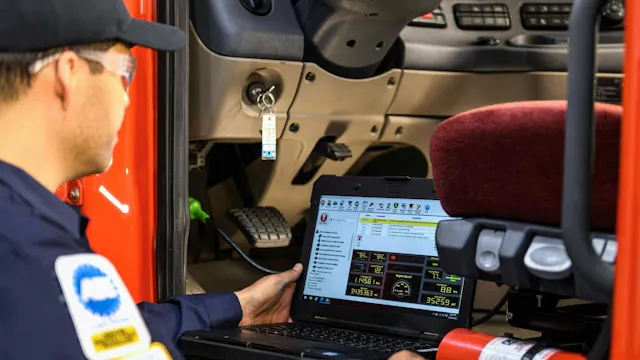
Keeping an eye on your system’s performance is crucial for long-term health. Diagnostic tools track metrics like CPU usage, memory consumption, and disk activity in real-time. You can see which programs hog resources or if your system is under unnecessary strain.
Would you like to know which apps slow down your startup? Monitoring tools provide insights to optimize your computer’s speed and responsiveness. This way, you make informed decisions about upgrades or cleanup tasks.
Credit: www.fleetmaintenance.com
Common Types Of Diagnostic Tools
Software diagnostic tools come in various forms, each designed to target specific areas of your computer’s health. Understanding the common types can help you choose the right tool to keep your system running smoothly. Let’s look at the main categories that you’ll often encounter in computer maintenance.
System Monitoring Utilities
System monitoring utilities track your computer’s vital signs like CPU usage, temperature, and running processes. Tools like Task Manager on Windows or Activity Monitor on Mac provide real-time insights. Have you ever noticed your laptop slowing down? These utilities help pinpoint which application is hogging resources, letting you take immediate action.
Disk And Memory Checkers
Disk and memory checkers scan your hard drive and RAM for errors or bad sectors. Running tools such as CHKDSK or MemTest86 can prevent data loss and crashes by finding hardware issues early. If your computer crashes or freezes unexpectedly, these tools can reveal underlying problems before they worsen.
Network Diagnostic Tools
Network diagnostic tools examine your internet or local network performance, identifying connectivity issues and bottlenecks. Programs like Ping, Traceroute, or Wireshark let you test the speed and stability of your connection. Ever wondered why your downloads suddenly slow down? These tools give you a clear answer.
Malware And Virus Scanners
Malware and virus scanners detect and remove harmful software that can compromise your system’s security. Popular options include Windows Defender and Malwarebytes, which regularly scan and quarantine threats. Protecting your computer from malicious attacks isn’t just about safety—it’s about keeping your data intact and your system reliable.
Popular Software Diagnostic Tools
Popular software diagnostic tools are essential for keeping your computer running smoothly. They help you identify issues before they become serious problems. Knowing which tools to use can save you time and frustration.
Built-in Os Utilities
Most operating systems come with built-in diagnostic tools that are easy to access and use. For example, Windows has the “Device Manager” and “Disk Check” utilities, which help you spot hardware conflicts and disk errors quickly.
Mac users can rely on “Disk Utility” to verify and repair disk permissions and file systems. These tools are free and often overlooked, but they provide a solid first step in troubleshooting your computer.
Third-party Diagnostic Programs
Third-party diagnostic tools offer deeper insights and advanced features beyond what built-in utilities provide. Tools like CCleaner help clean junk files and fix registry errors, improving system performance.
Other examples include HWMonitor for tracking hardware temperatures and CrystalDiskInfo for checking hard drive health. These programs often come with user-friendly interfaces that make it easier for anyone to maintain their computer.
Open Source Vs Commercial Tools
Choosing between open source and commercial diagnostic tools depends on your needs and budget. Open source tools like MemTest86 are free and highly effective for testing memory issues but may require some technical know-how.
Commercial tools, such as Acronis Disk Director, usually offer extensive support and regular updates but come with a price tag. Think about whether you want a simple free tool or a full-featured program with customer service.
Credit: shop.noregon.com
How Diagnostic Tools Improve Maintenance
Diagnostic tools play a key role in keeping computers healthy. They help spot issues early and keep systems running smoothly. These tools make computer maintenance easier and more effective. They save time and prevent costly repairs by finding problems before they grow.
Early Problem Detection
Diagnostic tools scan the system for hidden issues. They find errors in hardware and software quickly. Spotting problems early means fixing them before damage spreads. Early detection reduces downtime and keeps data safe. It also helps users avoid unexpected crashes and slowdowns.
Optimizing System Resources
These tools analyze how the computer uses memory and CPU. They identify apps or processes that use too much power. Fixing these problems improves speed and performance. Optimized systems run cooler and last longer. Users get a smoother experience with fewer interruptions.
Preventing System Failures
Diagnostic tools monitor system health continuously. They alert users to signs of wear or failure. Regular checks prevent hardware breakdowns and software errors. Maintenance becomes proactive, not reactive. This approach extends the computer’s lifespan and reduces repair costs.
Best Practices For Using Diagnostic Tools
Using software diagnostic tools effectively can save you time, prevent serious computer issues, and extend your device’s lifespan. However, simply running a scan isn’t enough. To get the most out of these tools, you need to know when to use them, how to understand their results, and how to combine their strengths.
Regular System Scans
Scheduling regular scans is key to catching problems early. Set a routine—weekly or biweekly scans help spot issues before they escalate. Think about your own experience: have you ever ignored a slow computer only to face a major crash later? Regular scans prevent that kind of surprise.
Make sure to run scans during low-usage times to avoid slowing down your work. Many tools allow you to automate this process, so you don’t have to remember every time.
Interpreting Diagnostic Reports
Diagnostic tools often generate detailed reports full of technical jargon. Don’t get overwhelmed—focus on the severity levels and recommended actions. If you see alerts about disk errors or memory problems, prioritize fixing those immediately.
Ask yourself: does this report suggest a hardware failure or just a software glitch? Understanding this helps you decide whether to troubleshoot yourself or seek professional help. Keep a record of these reports; comparing them over time reveals recurring issues.
Combining Multiple Tools
No single tool can cover all aspects of your computer’s health. Use different diagnostic programs to check hardware, software, and security. For example, run a disk health checker alongside a malware scanner for a fuller picture.
Some tools specialize in specific areas like CPU temperature or network performance. Using a combination can uncover hidden problems that one tool might miss. Have you noticed your computer running hot but your main diagnostic tool shows no issues? A temperature monitor could reveal overheating.

Credit: mechnician.com
Challenges And Limitations
Software diagnostic tools are invaluable for keeping your computer running smoothly. However, they come with their own set of challenges and limitations that can affect their reliability and effectiveness. Understanding these drawbacks helps you use these tools more wisely and avoid common pitfalls.
False Positives And Negatives
One tricky issue with diagnostic tools is false positives, where a problem is reported but doesn’t actually exist. This can lead to unnecessary worry or even unnecessary fixes that might cause more harm than good.
On the flip side, false negatives happen when the tool misses a real issue. You might think your system is fine while a hidden problem silently worsens. Have you ever ignored a warning only to face a bigger problem later?
Resource Consumption
Diagnostic tools often consume a significant amount of system resources like CPU and memory during scans. This can slow down your computer, especially if it’s an older model or running multiple applications.
Running these tools during critical work can interrupt your workflow. Scheduling scans during downtime can help, but it requires planning and discipline.
User Expertise Requirements
Many diagnostic tools provide complex data that isn’t easy to interpret without some technical know-how. You might see error codes or technical jargon that can confuse you rather than help.
Misunderstanding the results can lead to wrong fixes or ignoring real problems. Have you ever felt overwhelmed by a tool’s report and ended up closing it without taking action?
Frequently Asked Questions
What Are Software Diagnostic Tools Used For?
Software diagnostic tools identify and fix computer issues. They monitor hardware, detect errors, and optimize performance. These tools help maintain system health and prevent failures, ensuring smooth operation.
How Do Diagnostic Tools Improve Computer Maintenance?
Diagnostic tools provide early detection of problems. They analyze system status, alert users to errors, and suggest fixes. This proactive approach reduces downtime and extends computer lifespan.
Which Features Are Common In Software Diagnostic Tools?
Common features include hardware tests, error logs, system monitoring, and performance analysis. Some tools offer automatic repairs and detailed reports to guide troubleshooting.
Can Software Diagnostic Tools Prevent System Crashes?
Yes, these tools detect issues before they cause crashes. By monitoring system health and alerting users, they help maintain stability and prevent data loss.
Conclusion
Software diagnostic tools play a vital role in computer maintenance. They help identify and fix issues before they become serious problems. Regular use keeps your computer running smoothly and efficiently. These tools are user-friendly and often free or low-cost. Investing time in them saves future headaches.
Improved performance and longer device life are benefits. So, make diagnostic tools a part of your maintenance routine. This way, you ensure your computer stays in top shape. Keep your device healthy and enjoy a smoother computing experience.