Are you tired of Kodi running slow, crashing, or taking forever to load your favorite shows? Your Kodi experience can be much smoother and more enjoyable with just a little maintenance.
The Maintenance Tool Kodi offers simple ways to clean up junk files, fix errors, and keep everything running like new. You’ll discover easy steps to use this tool and unlock the full potential of your Kodi setup. Keep reading, and you’ll learn how to save time, avoid frustration, and enjoy streaming without interruptions.
Setting Up Kodi Maintenance Tool
Setting up the Kodi Maintenance Tool is essential for smooth performance. This tool helps keep Kodi clean and organized. It removes unnecessary files and optimizes the system. The process starts with installing the add-on, followed by setting up basic configurations. Both steps are simple and quick.
Installing The Maintenance Add-on
Begin by opening Kodi on your device. Go to the main menu and select Add-ons. Then, click on the Downloadsection. Look for Program Add-onsand find the Maintenance Tool in the list. Click on it and select Install. Wait for the confirmation message before proceeding. The add-on is now ready to use.
Configuring Basic Settings
Open the Maintenance Tool from the Add-ons menu. Navigate to the Settingsoption. Here, configure key options such as:
- Automatic cleanup schedules
- Backup preferences
- Cache clearing intervals
- Notification settings for maintenance tasks
Adjust these settings to match your usage habits. Save changes before exiting. Proper configuration ensures Kodi runs efficiently and stays clutter-free.

Credit: troypoint.com
Cleaning Cache And Thumbnails
Keeping Kodi running smoothly means paying attention to its cache and thumbnails. These temporary files help Kodi load content faster, but they can pile up and slow down your system over time. Cleaning cache and thumbnails regularly frees up space and improves Kodi’s performance.
Why Cache Cleaning Matters
Cache stores data from previously played videos or add-ons to speed up loading times. But too much cache can cause Kodi to freeze or crash. Have you ever noticed Kodi getting sluggish or buffering unexpectedly?
Thumbnails are the small images that represent movies, shows, or add-ons. These images build up and take significant storage, especially if you have a large library. Clearing these helps refresh your media library and reduces clutter.
Step-by-step Cache Cleanup
Start by opening the Maintenance Tool add-on in Kodi. This tool is designed to handle routine cleaning tasks easily.
- Navigate to the “Clear Cache” option within the Maintenance Tool.
- Select it and confirm when prompted to remove cached files.
- Next, find the “Clear Thumbnails” option and select it to delete old image files.
- Wait a few moments as Kodi removes these files — this process usually takes less than a minute.
- After cleaning, restart Kodi to allow it to rebuild fresh thumbnails and cache.
Have you tried clearing cache recently? You might be surprised how much quicker Kodi feels afterward. Regular cleaning keeps your streaming experience smooth and hassle-free.
Managing Add-ons Efficiently
Managing add-ons efficiently is key to keeping your Kodi experience smooth and enjoyable. Add-ons can enhance your media options, but outdated or unused ones can slow down your system. Learning how to keep them updated and remove the ones you no longer need helps maintain peak performance and frees up space.
Updating Add-ons Automatically
Keeping your add-ons up to date ensures you get the latest features and security patches. Kodi’s maintenance tool offers an automatic update option that saves you the hassle of checking each add-on manually.
Simply enable the auto-update feature in the maintenance tool settings. This way, your add-ons update quietly in the background without interrupting your viewing experience.
Have you ever missed out on new content or features because an add-on was outdated? Automatic updates prevent that from happening and keep everything running smoothly.
Removing Unused Add-ons
Unused add-ons take up valuable storage and can slow down Kodi. Regularly reviewing your add-ons allows you to remove those you no longer use.
The maintenance tool simplifies this process by listing all installed add-ons and letting you uninstall them in just a few clicks. This keeps your setup clean and responsive.
Consider how much quicker Kodi runs when you clear out clutter. What add-ons have you installed but never really used? Removing them might improve your overall experience more than you expect.
Backup And Restore Options
Backup and restore options in the Maintenance Tool Kodi are essential for keeping your media setup safe and hassle-free. They allow you to save your current configurations, add-ons, and settings so you can quickly recover if something goes wrong. Understanding how to create backups and restore data safely ensures you won’t lose your personalized Kodi experience.
Creating Backups
Start by opening the Maintenance Tool within Kodi. Look for the backup section where you can select what parts of your Kodi setup you want to save. You can back up your add-ons, settings, libraries, or the entire Kodi profile.
Choose a location on your device or an external drive to store the backup files. It’s wise to use a folder you can easily access later, especially if you plan to restore the data. The tool often lets you create a full backup with just a click, making it fast and convenient.
Think about how often you update your Kodi setup. Would weekly backups give you peace of mind? Regular backups help you avoid the frustration of losing hours of customization.
Restoring Data Safely
When you need to restore your Kodi setup, open the Maintenance Tool and navigate to the restore section. Select the backup file you want to use, making sure it matches the version of Kodi you have installed.
Before restoring, close any running add-ons or processes to prevent conflicts. The tool will then replace your current data with the saved backup, bringing your Kodi back to the exact state it was in when you created the backup.
If something feels off after restoring, don’t panic. Try restoring an earlier backup or check if any add-ons need updates. How would you handle a restore that doesn’t go as planned? Having multiple backup points can save you from unexpected issues.
Optimizing Kodi Performance
Optimizing Kodi performance ensures smoother streaming and faster navigation. Using the Maintenance Tool in Kodi helps fine-tune settings for better playback quality and speed. Small tweaks can reduce buffering and improve overall user experience. Focus on video settings and clearing unnecessary files to keep Kodi running well.
Adjusting Video Settings
Proper video settings help Kodi work efficiently with your device. Lowering the resolution can reduce lag on slower hardware. Set the refresh rate to match your display for smooth playback. Disabling hardware acceleration may fix some playback issues. Adjusting these settings balances quality and performance.
- Reduce video resolution if playback is choppy.
- Match refresh rate to your TV or monitor.
- Turn off hardware acceleration if it causes errors.
- Enable direct rendering for better speed.
Clearing Logs For Better Speed
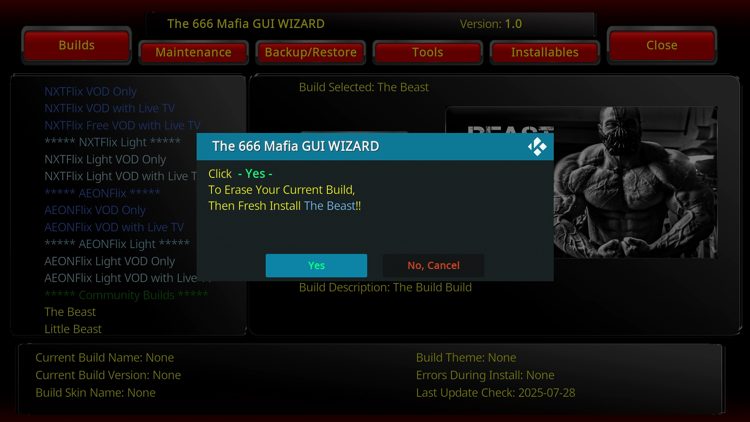
Old log files can slow down Kodi over time. The Maintenance Tool can remove these logs quickly. Clearing logs frees up space and reduces app crashes. Regularly deleting logs keeps Kodi clean and responsive. This simple step helps avoid slowdowns and errors.
- Open Maintenance Tool and find the log clearing option.
- Delete all old log files safely.
- Perform this clean-up weekly for best results.
- Check Kodi’s performance after clearing logs.
Credit: troypoint.com
Scheduling Maintenance Tasks
Scheduling maintenance tasks in Kodi ensures your system runs smoothly without manual intervention. Proper scheduling keeps Kodi clean, fast, and error-free. It helps avoid interruptions during active use. Setting up automatic tasks saves time and effort. You can customize task timing for convenience and efficiency.
Setting Up Auto Maintenance
Start by opening the Maintenance Tool in Kodi. Locate the scheduling options in the settings menu. Enable automatic maintenance to allow tasks to run on their own. Choose which tasks to include, like clearing cache or deleting thumbnails. Confirm your choices and save the schedule. Kodi will now perform these tasks without your input.
Choosing Optimal Times
Pick times when Kodi is usually idle to avoid disruptions. Nighttime or early morning hours work best for most users. Avoid peak usage times to prevent slowdowns or crashes. Consider your personal schedule and device usage habits. Regular intervals, such as weekly or biweekly, keep Kodi optimized. Adjust timing as needed for best performance and convenience.
Troubleshooting Common Issues
Troubleshooting common issues in Maintenance Tool Kodi helps keep your experience smooth. Problems can happen anytime. Quick fixes save time and avoid frustration.
Some errors come from add-ons. Others affect playback. Knowing how to solve these helps you enjoy Kodi without interruptions.
Fixing Add-on Errors
Add-ons may fail to load or crash. Clear Kodi’s cache to fix many add-on errors. This removes temporary data that can cause trouble.
Use the Maintenance Tool to refresh add-on repositories. This ensures add-ons stay updated and stable.
- Open Maintenance Tool from Kodi’s main menu.
- Select “Clear Cache” to remove old data.
- Choose “Update Repositories” to get the latest add-ons.
- Restart Kodi to apply changes.
Check your internet connection. Slow or unstable internet often causes add-on errors.
Resolving Playback Problems
Playback issues like buffering or freezing disrupt viewing. Clear Kodi’s cache regularly to improve playback.
Adjust video settings for better performance. Lower resolution if your device struggles with high-quality videos.
- Go to Maintenance Tool and select “Clear Cache.”
- Open Kodi settings and find the video playback section.
- Set resolution to 720p or lower for smoother streaming.
- Disable hardware acceleration if videos don’t play well.
Sometimes, updating Kodi or your add-ons fixes playback problems. Keep all components current.

Credit: github.com
Frequently Asked Questions
What Is The Maintenance Tool In Kodi?
The Maintenance Tool in Kodi helps optimize and clean the app. It removes cache, deletes packages, and fixes common issues. This tool improves Kodi’s performance and stability, ensuring smoother streaming and faster loading times for a better user experience.
How Do I Install The Maintenance Tool In Kodi?
To install the Maintenance Tool, open Kodi and go to Add-ons. Select “Install from repository,” then choose “Program Add-ons. ” Find and install the Maintenance Tool from the list. After installation, access it from the Program Add-ons menu to start optimizing Kodi.
Can The Maintenance Tool Fix Buffering Issues?
Yes, the Maintenance Tool can reduce buffering by clearing cache and deleting unnecessary files. This frees up memory and improves streaming speed. Regular use of the tool helps maintain Kodi’s smooth playback and prevents frequent buffering interruptions.
How Often Should I Use Kodi’s Maintenance Tool?
Using the Maintenance Tool once a week is ideal for optimal performance. Regular cleaning prevents build-up of cache and junk files. This keeps Kodi running efficiently and reduces the risk of crashes or slowdowns during streaming sessions.
Conclusion
Using the Maintenance Tool Kodi can improve your device’s performance. Regular cleaning ensures a smooth experience. This tool helps manage Kodi’s storage effectively. It also prevents crashes and unwanted slowdowns. Remember to back up your settings before using it. This keeps your data safe.
A clean Kodi is a happy Kodi. So, take a little time for maintenance. Your device will thank you for it. Enjoy a seamless streaming experience with these simple steps. Keep your entertainment uninterrupted and enjoyable. Give your Kodi the care it deserves.
Happy streaming!