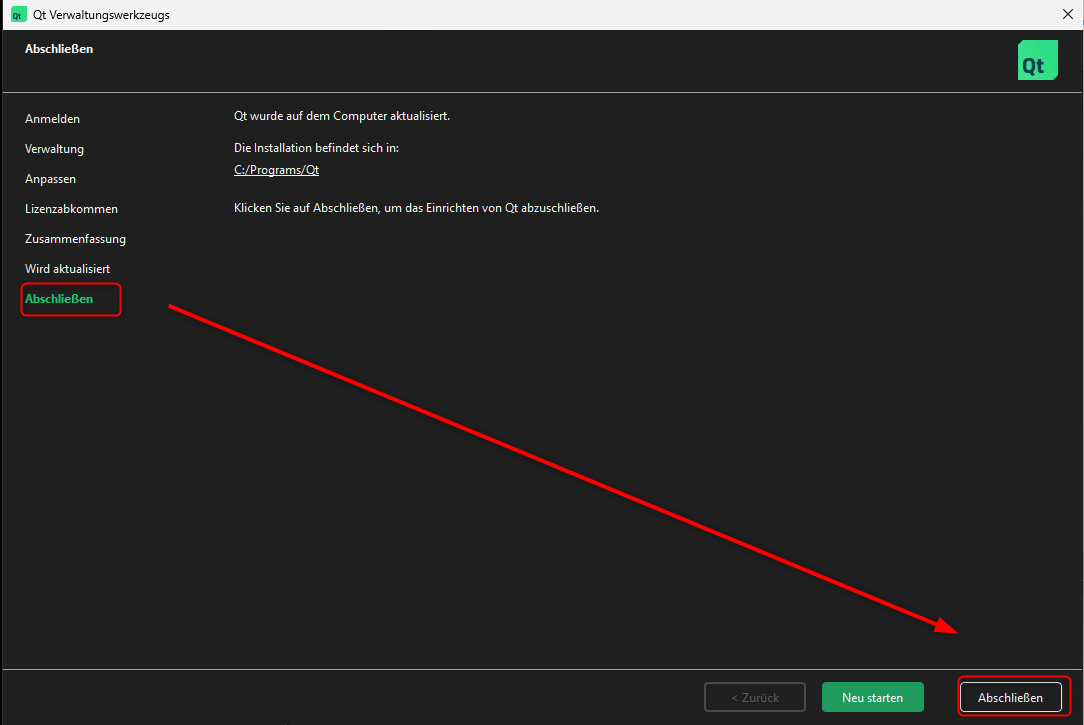
Are you looking to update or replace your Qt application quickly and without hassle? Knowing how to use the Maintenance Tool in Qt can save you time and prevent errors during the process.
This tool is designed to make managing your Qt installations and applications straightforward, even if you’re not a tech expert. In this guide, you’ll discover simple, step-by-step instructions to replace your application smoothly. By the end, you’ll feel confident handling updates on your own, avoiding common pitfalls that slow others down.
Keep reading to unlock an easy way to keep your Qt projects up to date.
Credit: doc.qt.io
Preparing For Replacement
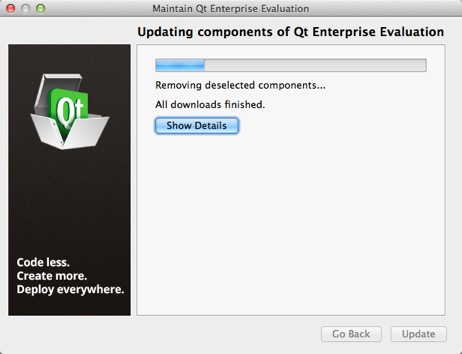
Preparing to replace your application using the Qt Maintenance Tool is a crucial phase that sets the stage for a smooth update process. Skipping preparation can lead to unexpected issues, such as data loss or compatibility problems. Taking a few moments to back up your current setup and verify your tool’s version can save you from headaches later.
Backing Up Existing Application
Before making any changes, ensure you have a complete backup of your existing Qt application. This includes your project files, configurations, and any custom settings you have applied.
You can create a backup by simply copying the entire application folder to a safe location. Consider using cloud storage or an external drive for extra security.
Have you ever lost hours of work because you skipped a backup? Don’t let that happen here. This step guarantees you can quickly restore your previous state if something goes wrong.
Checking Qt Maintenance Tool Version
Next, check the version of your Qt Maintenance Tool before starting the replacement. An outdated tool might not support the latest features or patches needed for your application update.
Open the Maintenance Tool and look for the version number, usually displayed on the welcome screen or under “About.” If the version is old, download the latest version from the official Qt website.
Running the newest tool ensures compatibility and reduces the risk of errors during replacement. Are you sure your tool is up to date? Take a moment to verify—it’s worth it.
Credit: doc.qt.io
Accessing The Maintenance Tool
Accessing the Maintenance Tool in Qt is the first step to replace your application safely. This tool helps manage installations and updates. Knowing where it is and how to open it correctly saves time and avoids errors.
Locating The Tool On Your System
The Maintenance Tool is usually inside your Qt installation folder. Its name is MaintenanceToolon Linux and macOS, and MaintenanceTool.exeon Windows.
Common paths include:
C:\Qt\on Windows/home/username/Qt/on Linux/Users/username/Qt/on macOS
Look for folders named by version or Qt components. The tool is often in the root folder or inside the folder for the installed Qt version.
Launching With Correct Permissions
Running the Maintenance Tool requires the right permissions to make changes. On Windows, right-click the tool and choose “Run as administrator.”
On Linux or macOS, open a terminal and use sudobefore the tool’s path to run it with admin rights.
Without proper permissions, the tool may not update or replace files correctly. Always confirm the tool runs with elevated permissions for smooth operation.
Navigating The Maintenance Tool Interface
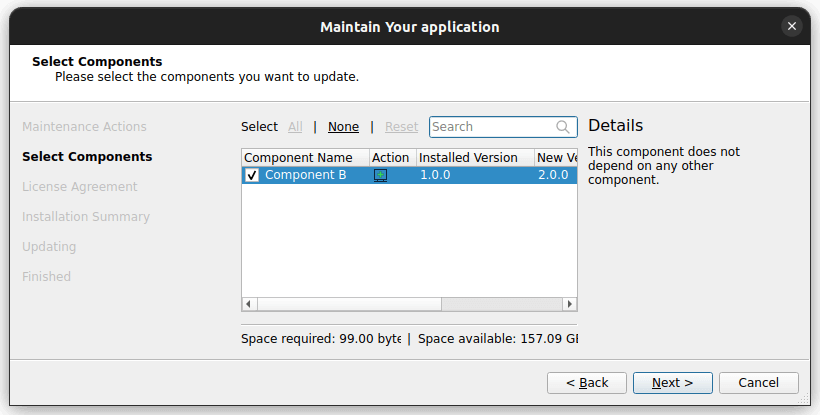
Navigating the Maintenance Tool interface can feel overwhelming at first, especially if you’re eager to replace or update your Qt application quickly. The interface is designed to guide you through the process smoothly, but knowing where to focus will save you time and avoid mistakes. Understanding the main menu options and how to select the right components is key to using the tool effectively.
Main Menu Options
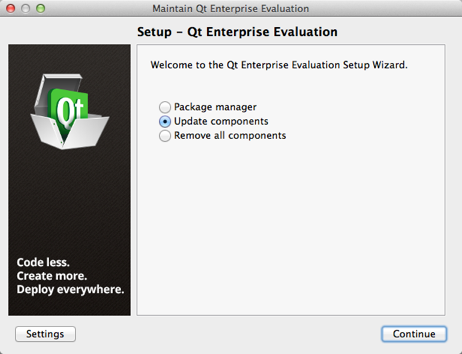
The main menu of the Maintenance Tool presents clear choices that control how you manage your Qt installation. You’ll typically see options like Update Components, Add or Remove Components, and Restore or Remove Installation. These options let you update your current setup, add new modules, or completely uninstall the application.
When you open the tool, take a moment to identify these main options. Which one fits your goal? If your aim is to replace the existing application, you’ll likely focus on the Add or Remove Componentsoption. This choice lets you customize your installation and ensures you don’t accidentally overwrite important files.
Selecting Application Components
Once you access the component selection screen, you’ll encounter a list of modules and tools related to Qt. Each item has a checkbox, letting you add or remove specific parts of the application. Be mindful here—selecting unnecessary components can increase the installation size and cause longer update times.
Think about what your project actually needs. Do you require the full Qt framework, or only certain modules like Qt Quick or Qt WebEngine? You can deselect components that won’t be used, which keeps your application lean and efficient.
Also, watch for dependencies. Sometimes, removing one component may affect others. The tool usually warns you if this happens, but it’s good practice to double-check before proceeding. Have you ever had an update fail because of missing modules? This step helps you avoid that problem.
Credit: doc.qt.io
Replacing The Application
Replacing an application using the Qt Maintenance Tool is a straightforward process, but it requires careful attention to ensure your updates go smoothly. This tool helps you manage your installations, whether you want to update existing components or replace the entire application with a new version. Understanding the available options and selecting the correct files is essential to avoid issues later.
Choosing The Update Or Replace Option
When you launch the Maintenance Tool, you’ll be prompted to choose between updating the current installation or replacing the application entirely. This decision depends on what you want to achieve:
- Update:This keeps your existing setup intact and adds or fixes components as needed.
- Replace:This option removes the current application and installs the new version from scratch.
Think about the state of your current installation. Are you facing persistent errors or compatibility issues? If yes, replacing might be the safer bet. Otherwise, updating can save time and preserve your settings.
Selecting New Application Files
Once you decide to replace, the Maintenance Tool asks you to select the new application files. This is where precision matters.
Make sure you have downloaded the correct package version for your platform. The tool usually allows browsing your file system to locate the update files, so double-check the path before confirming.
- Verify file integrity using checksums if available.
- Choose the full installation package rather than incremental updates when replacing.
- Keep a backup of your current installation just in case something goes wrong.
Have you ever skipped verifying files only to find the installation corrupted? Taking these small steps can save you hours of frustration. Once you confirm your files, the Maintenance Tool handles the rest, replacing the old application with the new one seamlessly.
Verifying The Replacement
After replacing your application using the Qt Maintenance Tool, verifying the replacement is crucial to ensure everything runs smoothly. This step confirms that the update or replacement has been applied correctly and that the application functions as expected. Skipping this verification can lead to unnoticed issues that might disrupt your workflow later.
Checking Application Version
Start by confirming the application version to ensure the replacement was successful. Open your application and locate the version number, usually found under the ‘Help’ menu in the ‘About’ section.
If the version number matches the one you intended to install, you’re on the right track. If it doesn’t, it’s a clear sign the replacement didn’t complete properly, and you should rerun the Maintenance Tool.
Testing Application Functionality
Next, test key features of your application to verify functionality. Focus on the core tasks you perform regularly, such as building projects, running debuggers, or accessing plugins.
Try to replicate a typical workflow you use daily. If something feels off or breaks, it may indicate issues with the replacement.
- Open and create projects to ensure file handling works correctly.
- Run your application to check runtime stability.
- Test plugins and extensions to confirm compatibility.
Have you ever updated software only to find a crucial feature missing or broken? Testing immediately after replacement helps avoid these frustrating surprises.
Troubleshooting Common Issues
Replacing an application using the Qt Maintenance Tool may sometimes face common issues. These issues can block the process or cause errors. Understanding how to fix these problems helps keep your app updated smoothly.
Troubleshooting is key. It saves time and avoids frustration. The following tips focus on frequent problems you might meet during replacement.
Handling Permission Errors
Permission errors happen when the Maintenance Tool lacks rights to modify files. This can stop the update or replacement process.
- Run the Maintenance Tool as an administrator or with elevated rights.
- Check the folder permissions where Qt is installed. Make sure your user account has write access.
- Close other programs that might be using Qt files to avoid conflicts.
- Temporarily disable antivirus software, as it may block file changes.
These steps often resolve permission issues quickly.
Resolving Update Failures
Update failures may occur due to network problems or corrupted files. They prevent the Maintenance Tool from completing the replacement.
- Verify your internet connection is stable and working properly.
- Clear the Maintenance Tool cache by deleting temporary files in the Qt installation folder.
- Restart the Maintenance Tool and try the update again.
- Check if Qt servers are reachable by visiting Qt’s official website.
- Download the latest version of the Maintenance Tool if the problem persists.
Following these tips helps fix common update errors efficiently.
Tips For Smooth Maintenance
Maintaining your Qt application using the Maintenance Tool can be straightforward if you prepare and plan carefully. Smooth maintenance reduces downtime and prevents unexpected issues. Here are practical tips to help you manage updates and replacements without hassle.
Scheduling Updates
Choose a time for updates when your application has the least users. This minimizes disruption and gives you space to troubleshoot if needed. Avoid updating during peak hours or right before important deadlines.
Set reminders or use calendar tools to keep track of maintenance windows. Automating notifications to your team or users helps everyone stay informed. Have you considered how much easier your life gets by simply picking the right update time?
Keeping Backup Copies
Always create backup copies before starting the replacement process. This protects you from data loss or configuration errors. Store backups in a separate location from your main application folder.
Test your backups regularly to ensure they work. A backup that can’t be restored is like having no backup at all. Think about the last time you lost data—could a simple backup have saved you hours of stress?
Frequently Asked Questions
What Is The Maintenance Tool In Qt Used For?
The Maintenance Tool in Qt manages installations and updates. It allows users to add, remove, or replace Qt components easily without reinstalling the entire framework.
How Do I Replace An Application Using Qt Maintenance Tool?
Open the Maintenance Tool, choose “Add or remove components,” select the application, and replace it. Follow on-screen prompts to complete the process efficiently.
Can I Update Qt Applications Through The Maintenance Tool?
Yes, the Maintenance Tool facilitates updating Qt applications. It downloads necessary files and replaces older versions with new updates seamlessly.
Is Replacing An Application With Maintenance Tool Safe?
Yes, it is safe and reliable. The tool ensures proper installation and avoids conflicts by handling dependencies automatically during replacement.
Conclusion
Replacing applications with Qt’s Maintenance Tool is straightforward. Follow the steps carefully. Ensure your system requirements are met first. Backup your data to prevent loss. Use the Maintenance Tool to uninstall the old version. Download the latest version from the Qt website.
Install the new version using the tool. Confirm the application runs smoothly post-installation. Regular updates improve functionality and security. Always check for the latest version available. Practice these steps to ensure a seamless transition. Consistency is key for best results.
Stay updated and maintain your Qt applications effectively.