
Are you tired of your XBMC running slow or cluttered with unnecessary files? Installing the XBMC Maintenance Tool add-on can be the simple fix you need to keep your media center running smoothly.
In this guide, you’ll discover step-by-step how to install this powerful tool quickly and easily. By the end, you’ll have the knowledge to boost your XBMC’s performance and enjoy a seamless streaming experience. Ready to take control of your media center?
Let’s get started!
Credit: troypoint.com
Prerequisites For Installation
Before installing the XBMC Maintenance Tool add-on, certain prerequisites must be met. These ensure the installation process runs smoothly. Proper preparation helps avoid errors and saves time.
Compatible Devices
Make sure your device supports XBMC, also known as Kodi. The add-on works best on:
- Windows PCs
- Mac computers
- Android smartphones and tablets
- Amazon Fire TV and Fire Stick
- Linux-based systems
- Raspberry Pi devices
Older devices may face performance issues or incompatibility. Check your device specs before proceeding.
Required Software
Install the latest version of Kodi on your device. The XBMC Maintenance Tool add-on requires Kodi version 17.0 or higher. Download Kodi from the official website to ensure safety.
Enable “Unknown Sources” in Kodi settings to install third-party add-ons. This setting allows you to add the maintenance tool without restrictions.
Ensure a stable internet connection for downloading the add-on files. A slow or interrupted connection might cause installation failures.
Downloading Xbmc Maintenance Tool
Downloading the XBMC Maintenance Tool is your first move to keep your media center running smoothly. This tool helps clear cache, delete thumbnails, and manage backups, all of which improve performance and prevent crashes. Getting it right from the start ensures you avoid common installation hiccups and security risks.
Official Source
Always download the XBMC Maintenance Tool from the official Kodi repository or the trusted Kodi website. This guarantees you get the latest, unaltered version free from malware or corrupted files. Third-party sites might offer quick downloads, but they often carry risks that can compromise your device.
If you’re ever unsure, check the URL carefully. Official sources usually have “kodi.tv” in their web address. You can also verify the add-on by comparing the version number and release date with Kodi’s official announcements.
Safety Tips
Before downloading, make sure your Kodi installation is updated to the latest version. This reduces compatibility issues and ensures all security patches are applied. Also, it’s wise to back up your Kodi settings and data before adding new tools.
Use a reliable antivirus program to scan downloaded files, even from trusted sources. This extra step can catch hidden threats that slip through. Have you experienced slowdowns or crashes after installing new add-ons? Scanning beforehand could save you that headache.
Lastly, avoid downloading add-ons from unknown repositories. They might contain outdated or unsafe versions. Sticking to official sources keeps your media center stable and secure.
Installing The Add-on
Installing the XBMC Maintenance Tool add-on is a straightforward process. This tool helps keep your XBMC system running smoothly by cleaning cache and managing backups. Follow these steps carefully to add this useful feature to your setup.
Launching Xbmc
Start by opening your XBMC application on your device. Wait for the main menu to load fully. The clean interface makes it easy to navigate. Make sure you have a stable internet connection for the next steps.
Accessing Add-on Manager
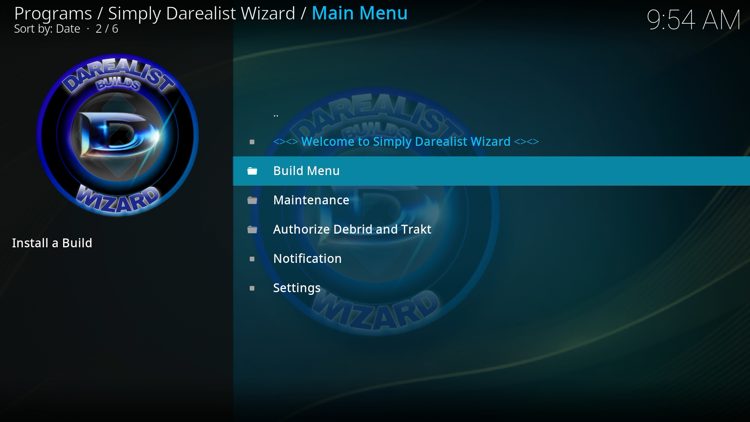
On the main menu, find and select the “Add-Ons” option. This opens the Add-On Manager where you can install new tools. Choose “Install from repository” to browse available add-ons. Scroll or search for the “XBMC Maintenance Tool” in the list. Click on it to see details. Hit the “Install” button to begin the installation process. Wait until the system confirms the add-on is installed.
Credit: troypoint.com
Configuring The Add-on
Configuring the XBMC Maintenance Tool add-on is essential to get the most out of its features. Proper setup ensures smooth operation and helps you maintain your media center efficiently. Let’s look at how you can tailor the add-on to your needs quickly and effectively.
Initial Setup
Once you install the XBMC Maintenance Tool, launch it to begin the initial setup. You’ll find a straightforward interface guiding you through basic configurations like setting cache sizes and defining cleanup schedules.
Pay attention to the prompts asking about automatic maintenance tasks. Setting these early saves you from manual cleanups later. For example, enabling automatic cache clearing can prevent sluggish performance before you even notice it.
Don’t rush through this part—your choices here affect how the add-on runs daily. Take a moment to review each option carefully to avoid unnecessary errors or missed maintenance tasks.
Personalizing Settings
After the initial setup, dive into personalizing the settings to fit your usage patterns. You can adjust parameters such as how often the add-on runs maintenance, which files to exclude, and notification preferences.
- Maintenance Frequency:Choose between daily, weekly, or monthly scans depending on how often you add new content.
- Exclusion List:Protect specific folders or files from being deleted during cleanup.
- Notifications:Decide if you want alerts when maintenance tasks complete or if errors occur.
Think about your own media habits. Do you add new movies every day or only occasionally? Setting the tool accordingly prevents unnecessary resource use and keeps your system tidy without extra effort.
Have you ever missed clearing cache until your system slowed down? This tool lets you avoid that hassle. Personalizing these settings puts you in control and keeps your Kodi experience smooth and responsive.
Troubleshooting Common Issues
Troubleshooting common issues helps keep the XBMC Maintenance Tool add-on running smoothly. Problems during installation or slow performance can stop the tool from working right. Knowing how to fix these issues saves time and frustration. Here are solutions to common problems users face.
Installation Errors
Installation errors often happen due to missing files or internet problems. Check the following to fix these errors:
- Ensure your internet connection is stable and fast.
- Verify the repository URL is correct and active.
- Clear the cache and restart Kodi before installing.
- Update Kodi to the latest version to avoid compatibility issues.
- Disable any VPN or firewall that might block downloads.
These steps usually resolve most installation issues quickly.
Performance Problems
Performance problems can cause the add-on to lag or crash. Try these tips to improve speed and stability:
- Clear the add-on’s cache regularly to free up space.
- Close other running add-ons to reduce system load.
- Restart your device to refresh memory and processes.
- Check for updates to the add-on and Kodi itself.
- Lower video resolution settings if streaming is slow.
Following these tips keeps the add-on responsive and stable.

Credit: www.youtube.com
Benefits Of Using The Add-on
Using the XBMC Maintenance Tool add-on brings clear advantages that can improve how your media center runs and feels. It’s not just about keeping things tidy; it’s about making your system smarter and your experience smoother. Let’s look at what this add-on really does for you.
System Optimization
The add-on helps clean up unnecessary files and cache that slow down your device. It frees up space by removing old logs and temporary files, so your XBMC runs faster and more efficiently.
Regular maintenance with this tool can prevent crashes and errors that often frustrate users. Have you noticed how a cluttered system can affect streaming speed? This add-on takes care of those hidden issues automatically.
Enhanced User Experience
With the XBMC Maintenance Tool, you get smoother navigation and quicker load times. It keeps your library organized and up to date, so finding your favorite shows or movies becomes effortless.
Imagine spending less time waiting and more time enjoying your content. The add-on also offers backup options, giving you peace of mind knowing your settings and preferences are safe.
Frequently Asked Questions
What Is The Xbmc Maintenance Tool Add-on?
The XBMC Maintenance Tool Add-on helps clean cache, delete thumbnails, and optimize XBMC performance. It keeps your media center running smoothly.
How Do I Install The Xbmc Maintenance Tool?
To install, open XBMC, go to Add-ons, select Install from repository, find Maintenance Tool, and click Install.
Can The Xbmc Maintenance Tool Improve Streaming Speed?
Yes, it clears cache and temporary files, which can enhance streaming speed and reduce buffering issues.
Is The Xbmc Maintenance Tool Safe To Use?
Yes, it is safe and designed specifically for XBMC to maintain system health without risking your data.
Conclusion
Installing the XBMC Maintenance Tool add-on keeps your media center running smoothly. It helps clean cache and manage files easily. Following the steps makes the process simple and quick. Regular use of this tool improves performance and avoids problems. Try it today to keep your system healthy and fast.