Are you tired of your browser running slow or cluttered with unnecessary data? Cleaning your browser can make it faster, safer, and more efficient.
But did you know that Windows maintenance tools can help you do this quickly and easily? You’ll discover simple steps to clean your browser using tools already built into your Windows system. By the end, your browser will feel fresh and responsive, and you’ll know exactly how to keep it that way.
Keep reading to unlock the secrets of a cleaner, faster browsing experience!
Browser Cleaning Basics
Keeping your browser clean helps it run smoothly and protects your privacy. Over time, browsers collect files and data that slow down performance. Cleaning removes this clutter and improves speed. It also helps fix common problems like crashes or errors. Using Windows maintenance tools makes this task simple and effective.
Why Clean Your Browser
Browsers store temporary files, cookies, and cache. These take up space and can cause slow loading times. Cleaning your browser frees up storage and improves speed. It removes tracking cookies that follow your online activity. This keeps your browsing more private and secure. A clean browser also reduces the chance of crashes or freezes.
Common Browser Issues
- Slow page loading due to excess cache
- Frequent crashes or freezing
- Pop-up ads caused by leftover cookies
- Outdated data causing display errors
- Privacy risks from stored browsing history
Regular cleaning solves these issues. Windows tools can delete temporary files and reset settings. This helps your browser stay fast and reliable.

Credit: www.help.k12.com
Windows Maintenance Tools
Windows Maintenance Tools help keep your browser and system clean. These tools remove unwanted files and improve performance. They work quietly in the background to free space and scan for issues.
Using these tools regularly keeps your browser fast and responsive. They clear cache, cookies, and temporary files that slow down browsing. Here are some key tools built into Windows that help with this task.
Disk Cleanup Utility
Disk Cleanup Utility deletes temporary internet files and cache. It clears system junk that takes up space on your hard drive. Running this tool frees storage and speeds up your browser.
Open the utility by typing “Disk Cleanup” in the Start menu. Select your drive, usually C:, and let it scan. Choose files to delete, including temporary internet files and thumbnails.
Storage Sense
Storage Sense automatically cleans files you no longer need. It removes temporary files, recycle bin contents, and browser cache. You can set it to run on a schedule or manually.
Activate Storage Sense in Settings under System > Storage. Turn on the feature and customize cleanup options. It helps keep your browser and system tidy without extra effort.
Windows Security Scanner
Windows Security Scanner checks for malware and unwanted software. Malicious files can slow your browser and cause problems. Running a scan helps keep your system safe and clean.
Access it via Windows Security in the Start menu. Run a full or quick scan to find threats. Remove any detected risks to improve browser speed and security.
Clearing Browser Data Manually
Clearing your browser data manually can improve speed, protect your privacy, and fix loading issues. While it might seem technical, Windows maintenance tools make this task straightforward. Taking control of your browser’s stored information helps keep your online experience smooth and secure.
Deleting Cache And Cookies
Cache stores files from websites you visit, helping pages load faster next time. However, too much cached data can slow your browser and cause display errors. Cookies save site preferences but may track your activity over time.
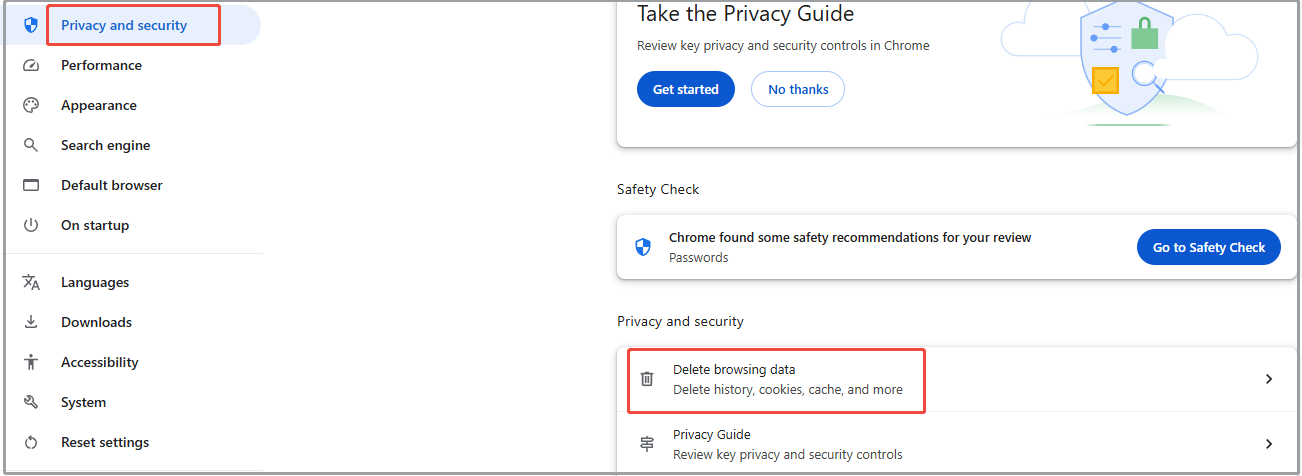
To delete cache and cookies, open your browser settings and find the privacy or history section. Select the option to clear browsing data, then choose cache and cookies. This refreshes your browser without affecting saved passwords or autofill info.
Clearing Browsing History
Your browsing history logs every website you visit. This can be useful for quick access, but it also reveals your online habits. Clearing history regularly helps maintain your privacy and frees up a small amount of storage.
You can clear history manually by going to your browser’s history menu. Select the time range you want to erase—whether it’s the last hour or all time—and confirm the deletion. This simple step can prevent unwanted tracking and keep your browser tidy.
Removing Saved Passwords And Autofill Data
Browsers offer convenience by saving passwords and autofill details like addresses or credit card numbers. Yet, this data poses a risk if your device is accessed by others. Removing saved passwords and autofill entries enhances your security.
Access the password and autofill settings in your browser, review the saved entries, and delete any that you no longer need or trust. This practice ensures that sensitive information is not stored longer than necessary, protecting you from potential breaches.
Using Disk Cleanup For Browser Files
Using Disk Cleanup is a simple way to remove browser files that slow down your PC. It clears temporary files, cache, and other unnecessary data stored by your browser. This helps free up space and improve browser speed. Windows includes Disk Cleanup as a built-in tool, so no extra downloads are needed.
Disk Cleanup targets files stored from web browsing sessions. Removing these files helps protect your privacy and keeps your browser running smoothly. It is safe and easy to use with just a few clicks.
Selecting Browser Temporary Files
Open Disk Cleanup by typing “Disk Cleanup” in the Windows search bar. Choose the drive where your browser stores files, usually the C: drive. Disk Cleanup will calculate how much space you can free.
Look for options like:
- Temporary Internet Files
- Temporary files
- Thumbnails
- Downloaded Program Files
Select these to clear browser cache and temporary data. Be sure not to delete important personal files.
Running Disk Cleanup Safely
Close all browsers before starting Disk Cleanup. This avoids conflicts with files in use. Click “OK” to start the cleanup after selecting files.
Windows will delete the chosen files safely. It will not affect your browser settings or bookmarks. Run Disk Cleanup regularly to keep your system healthy.
Enabling Storage Sense For Automatic Cleanup
Enabling Storage Sense helps clean your browser and system automatically. It frees up space by deleting temporary files and unused data. This tool works quietly in the background. It keeps your device running smoothly without manual effort.
Configuring Storage Sense Settings
Open the Settings app and go to System. Find Storage in the sidebar and click it. Turn on Storage Sense by toggling the switch. Click on “Configure Storage Sense or run it now” to adjust options.
Choose how often Storage Sense cleans files:
- Every day
- Every week
- Every month
- When low on disk space
Select which files to remove, such as temporary files and recycle bin content. Adjust settings to delete files from your browser cache. This setup helps keep browser data tidy without extra work.
Scheduling Regular Cleanups
Set a cleanup schedule that fits your routine. Frequent cleanups prevent storage from filling up fast. Storage Sense works better with a clear schedule. Choose a time when your PC is usually on but not busy.
You can also run Storage Sense manually anytime. This option is handy after heavy browsing or downloads. Regular cleanup keeps your browser fast and your system healthy. It stops junk files from slowing down your device.
Scanning For Malware Affecting Browsers
Malware lurking in your browser can slow down your internet experience and compromise your privacy. Identifying and removing these threats is essential to keeping your browser running smoothly. Using Windows maintenance tools, you can scan for malware that specifically targets browsers and take action before it causes damage.
Running Windows Security Full Scan
Start by opening Windows Security from your Start menu. Choose the “Virus & threat protection” option to access scanning tools.
Select “Full scan” instead of the quick scan to check every file and program on your system. This thorough scan can detect malware hiding deep in your browser’s files or extensions.
The process might take some time, but it’s worth the wait. Have you noticed your browser acting strangely or showing unwanted ads? A full scan can reveal if malware is the culprit.
Removing Threats Detected
After the scan finishes, Windows Security will list any threats it found. You can review the details to understand what kind of malware was detected.
Click “Start actions” to let Windows remove or quarantine the threats. This step is crucial—ignoring detected malware can lead to ongoing issues or data theft.
Once the threats are removed, restart your browser and check if its performance improves. If problems persist, consider running the scan again or using additional cleanup tools.
Tips For Maintaining Browser Performance
Maintaining your browser’s performance is key to a smooth and secure online experience. Over time, browsers can slow down due to outdated software, too many add-ons, or unnecessary downloads cluttering your system. Taking simple steps can help you keep your browser running fast and efficiently without needing complicated tools.
Regularly Updating Your Browser
Keeping your browser up to date is one of the easiest ways to maintain performance. Updates often include security patches and speed improvements that protect you from online threats and make your browsing faster.
Have you ever noticed your browser lagging or crashing? Chances are, it’s because it’s running an older version. Set your browser to update automatically or check for updates manually every few weeks to avoid this issue.
Managing Extensions And Plugins
Extensions and plugins add useful features but can also slow down your browser if you have too many or outdated ones. Review your installed extensions regularly and remove those you no longer use.
Think about which add-ons you really need. Does every extension justify the extra memory it uses? Disabling unnecessary plugins can free up resources and improve your browser’s speed.
Avoiding Unnecessary Downloads
Downloads can clutter your device and sometimes introduce unwanted software that affects browser performance. Be cautious about what you download and avoid files or programs from untrusted sources.
Have you ever downloaded something you didn’t mean to or forgot about files piling up? Regularly clear your downloads folder and scan new files for malware to protect your browser and system.

Credit: www.minitool.com
Credit: www.minitool.com
Frequently Asked Questions
What Tools Can Clean My Browser On Windows?
Windows Maintenance Tools like Disk Cleanup and Storage Sense can help clean your browser. They remove unnecessary files and cached data. This improves performance and frees up space. Regular use keeps your browser running smoothly.
How Does Disk Cleanup Work For Browser Cleaning?
Disk Cleanup identifies and deletes temporary files and system cache. It targets browser files that slow performance. By clearing these, it helps speed up your browser. Access it via your Windows search bar to start the cleaning process.
Can Storage Sense Optimize My Browser’s Performance?
Yes, Storage Sense can enhance your browser’s performance. It automatically deletes temporary files and cache. This reduces load times and improves browsing speed. Enable it in your system settings for automated maintenance.
Is It Safe To Delete Browser Cache?
Yes, deleting browser cache is safe and beneficial. It frees up space and resolves loading issues. Cache stores temporary files that can slow your browser. Regular clearing helps maintain optimal performance without affecting personal data.
Conclusion
Cleaning your browser with Windows tools keeps it fast and secure. Regular maintenance removes clutter and protects your privacy. These simple steps help your browser run smoothly every day. Taking a few minutes now saves time later. Stay safe online by clearing cookies and cache often.
Use built-in Windows features for easy, free cleaning. Keep your browser fresh and enjoy better browsing experiences. Small actions bring big improvements. Try it today and see the difference.