
Keeping your Kodi running smoothly can sometimes feel like a hassle. You want to enjoy your favorite shows without interruptions, but glitches and slowdowns keep getting in the way.
What if there was a simple tool you could add that takes care of all the cleaning, updating, and fixing for you? In this guide, you’ll discover exactly how to add the Kodi Maintenance Tool to your setup. By the end, your Kodi will be faster, cleaner, and more reliable—letting you spend less time troubleshooting and more time streaming.
Ready to make your Kodi experience hassle-free? Let’s dive in.

Credit: recoverit.wondershare.com
Why Kodi Maintenance Matters
Keeping Kodi in top shape is more important than many users realize. If you don’t maintain it regularly, you might face frustrating slowdowns, crashes, or even lost data. A well-maintained Kodi ensures smooth streaming and a better overall experience.
Common Kodi Issues
Many Kodi users experience buffering, freezing, or sudden app crashes. These problems often come from cache buildup, outdated add-ons, or corrupted files. You might notice Kodi taking longer to load or menus responding sluggishly.
Another common issue is storage space running low because Kodi stores temporary files and logs. Without regular cleaning, these files pile up quickly. Have you ever wondered why your device suddenly feels slower after using Kodi for a while?
Benefits Of Regular Maintenance
Performing routine maintenance can prevent most common Kodi problems before they start. By clearing cache and removing unused files, you free up space and speed up the app. Keeping add-ons updated also ensures compatibility and better security.
Regular maintenance saves you time and frustration. Instead of troubleshooting unexpected errors, you enjoy uninterrupted streaming. It’s like giving your Kodi setup a quick health check—simple steps that make a big difference.
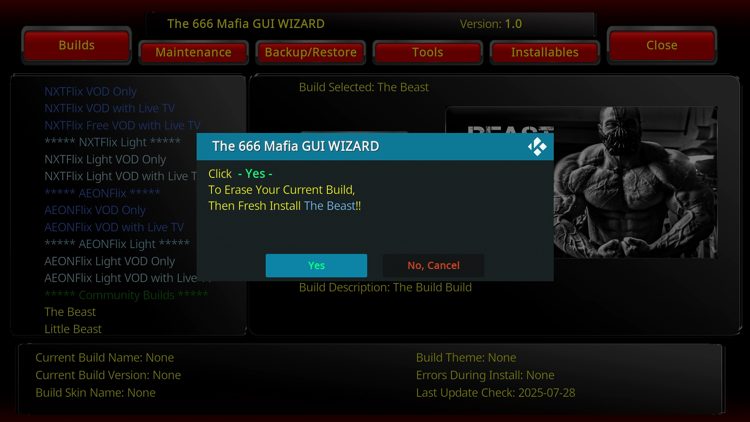
Credit: troypoint.com
Choosing The Right Maintenance Tool
Choosing the right maintenance tool is key to keeping Kodi running smoothly. A good tool helps clean caches, remove junk files, and backup settings. It saves time and improves performance. Not all maintenance add-ons are the same. Some offer more features, while others focus on simplicity. Picking the right one depends on your needs and Kodi version.
Popular Kodi Maintenance Add-ons
- Ares Wizard: Offers cleaning, backups, and system checks.
- Indigo: Provides maintenance, logs, and add-on management.
- Supreme Builds Wizard: Focuses on maintenance and build installations.
- OpenWizard: Known for cleaning tools and easy backups.
Compatibility And Requirements
Check if the maintenance tool supports your Kodi version. Some add-ons work only on Kodi 18 or later. Others may require extra repositories to install. Also, confirm the tool fits your device’s hardware. Lightweight tools suit low-power devices better. Read user reviews and update logs. This helps avoid bugs and crashes.
Installing The Kodi Maintenance Tool
Installing the Kodi Maintenance Tool helps keep Kodi running smoothly. It cleans cache, deletes thumbnails, and manages backups. This tool improves Kodi’s performance and reduces crashes.
Follow these steps to install the Maintenance Tool easily and quickly.
Enabling Unknown Sources
First, open Kodi and go to the Settings menu. Choose System Settings and then select Add-ons. Find the option called Unknown Sources. Turn it on to allow installation from third-party sources. A warning message will appear. Click Yes to confirm.
Adding The Repository
Next, return to the Settings menu and select File Manager. Click Add Source and then select
Downloading The Add-on
Go back to the main menu and select Add-ons. Click the open box icon at the top left. Choose Install from zip file and select the source added earlier. Find the repository zip file and click it to install. Wait for the notification that confirms the repository is installed.
Now, select Install from repository. Open the repository you added. Find the Maintenance Tool add-on in the list. Click Install and wait for the add-on to download and install completely. The tool is now ready to use in your Add-ons menu.

Credit: www.youtube.com
Configuring The Maintenance Tool
Configuring the Kodi Maintenance Tool helps keep your media center clean and efficient. This tool manages cache, deletes unnecessary files, and secures your settings. Proper setup ensures smooth performance without manual effort.
Customize settings to match your preferences. Automate tasks and get alerts for important activities. Schedule backups to protect your data from loss or corruption.
Setting Up Automatic Cleanups
Automatic cleanups remove cache and temporary files regularly. This keeps Kodi fast and responsive. Open the Maintenance Tool settings and find the cleanup options.
- Enable automatic cleanup to run at set intervals
- Choose what to clean: cache, thumbnails, or packages
- Set frequency: daily, weekly, or monthly
Save changes to activate the cleanup schedule. This reduces storage use and prevents slowdowns.
Customizing Notifications
Notifications inform you about cleanup results and errors. You can turn them on or off based on your needs.
- Go to notification settings inside the Maintenance Tool
- Enable notifications for completed tasks and warnings
- Choose notification style: popup or silent logs
Notifications help you stay aware without opening Kodi constantly.
Scheduling Backups
Backups protect your Kodi settings and library data. Schedule regular backups for safety and easy recovery.
- Access the backup section in the Maintenance Tool
- Select backup frequency: daily, weekly, or custom
- Pick backup location: local storage or external drive
With scheduled backups, restoring your setup after issues is simple and quick.
Using Maintenance Features For Performance
Using maintenance features in Kodi helps keep the app fast and smooth. These tools remove unnecessary files and fix data to improve playback and reduce crashes. Regular upkeep keeps Kodi running at its best and extends its life.
Maintenance tasks like clearing cache, deleting unused add-ons, and optimizing the database are simple to do. They free up space and make Kodi respond quicker. This section explains how to use these features effectively.
Clearing Cache And Thumbnails
Cache stores temporary files to speed up Kodi. But too much cache slows down the app. Thumbnails are small images used for showing media covers. Old thumbnails take up space and cause lag.
- Open the maintenance tool in Kodi.
- Find the option to clear cache and thumbnails.
- Run the cleanup to remove old files.
- Restart Kodi for better performance.
This keeps Kodi light and fast, especially on devices with less storage.
Deleting Unused Add-ons
Add-ons add features but unused ones take space and use resources. Removing them reduces clutter and stops slowdowns. It also lowers security risks from outdated add-ons.
- Go to the add-on manager in Kodi.
- Check the list for add-ons you don’t use.
- Select and uninstall these add-ons.
- Confirm removal and restart Kodi.
Regularly deleting unused add-ons keeps Kodi clean and efficient.
Optimizing Database
Kodi’s database stores information about your media. Over time, it can get large and messy. Optimizing the database cleans broken entries and speeds up searches.
- Access the maintenance tool’s database section.
- Choose the option to optimize or clean the database.
- Wait for the process to finish.
- Restart Kodi to apply changes.
This process improves Kodi’s responsiveness and reduces errors.
Troubleshooting Installation Issues
Installing the Kodi Maintenance Tool can sometimes hit a snag. Troubleshooting these installation issues quickly lets you get back to enjoying your media setup without frustration. Understanding common roadblocks helps you solve problems more efficiently and improves your overall Kodi experience.
Resolving Repository Errors
Repository errors often occur when Kodi can’t reach the source hosting the add-on. Check your internet connection first; a weak or unstable connection can cause this issue.
Next, verify the repository URL you entered. Typing mistakes or outdated URLs are common culprits. If the repository has moved or been taken down, you might see an error message.
Try accessing the repository URL in a web browser. If it doesn’t load, the repository is likely offline or removed. You may need to find an alternative repository hosting the Maintenance Tool.
Clearing Kodi’s cache can also help if the repository was previously unreachable. This forces Kodi to refresh its source list and can resolve stubborn errors.
Fixing Add-on Installation Failures
If the Maintenance Tool fails to install after accessing the repository, several factors could be responsible. One common cause is Kodi’s security settings blocking the add-on installation.
Make sure you have enabled installation from unknown sources in Kodi’s settings. Without this permission, Kodi won’t allow new add-ons outside the official repository.
Another reason for installation failure is a corrupted or incomplete download. Try reinstalling the add-on after restarting Kodi to clear any temporary glitches.
Sometimes, dependencies required by the Maintenance Tool add-on aren’t installed automatically. Check the installation prompts carefully and manually install any missing dependencies.
Have you noticed if your Kodi version is up to date? Older versions may not support newer add-ons. Updating Kodi can solve compatibility problems and ensure smooth installations.
Tips For Ongoing Kodi Maintenance
Keeping Kodi running smoothly requires ongoing care. Regular maintenance helps avoid crashes and slowdowns. Simple habits can keep your Kodi setup clean and efficient. Follow these tips to maintain Kodi with ease.
Regular Updates
Always update Kodi and its add-ons. Updates fix bugs and improve security. Check for updates at least once a week. Use the built-in update feature or install updates manually. Avoid using outdated versions to prevent errors.
Monitoring Storage Space
Keep an eye on your device’s storage space. Kodi caches and temporary files can fill up storage quickly. Clear cache regularly to free space. Delete old or unused add-ons to save room. A clean storage helps Kodi run faster and more stable.
Frequently Asked Questions
What Is Kodi Maintenance Tool Used For?
Kodi Maintenance Tool helps clean cache, delete thumbnails, and backup data. It improves Kodi’s performance and frees up storage space efficiently.
How Do I Install Kodi Maintenance Tool?
Go to Kodi Add-ons, select Install from Repository, find Maintenance Tools, and click Install. The tool will then be ready to use.
Can Kodi Maintenance Tool Improve Streaming Speed?
Yes, by clearing cache and unnecessary files, it optimizes Kodi’s speed. This reduces buffering and enhances streaming quality for smoother playback.
Is Kodi Maintenance Tool Safe To Use?
Yes, it is safe when downloaded from official Kodi repositories. It only deletes temporary files and does not affect your media content.
Conclusion
Adding the Kodi Maintenance Tool enhances your media experience. It helps keep Kodi running smoothly. Regular maintenance prevents issues and improves performance. The steps are simple and quick to follow. Users can easily manage and clean Kodi with this tool.
Enjoy more seamless streaming and fewer interruptions. Keep your media player in top shape with routine upkeep. The Maintenance Tool offers a practical solution. A well-maintained Kodi ensures better enjoyment. So, start today and see the difference. Happy streaming with a reliable Kodi setup!