Are you looking to keep your Qt application running smoothly and up to date? Knowing how to update components using the Maintenance Tool is key to avoiding bugs, improving performance, and accessing new features.
In this guide, you’ll learn simple, step-by-step instructions to update your Qt components quickly and without hassle. By the end, you’ll feel confident managing your Qt environment like a pro. Ready to make your development process easier and more efficient?
Let’s dive in.
Getting Started With Qt Maintenance Tool
Getting started with the Qt Maintenance Tool is easier than you might think. This handy application helps you keep your Qt environment up-to-date without fuss. Understanding where to find it and how to prepare your system can save you time and prevent common update issues.
Locating The Maintenance Tool
The Maintenance Tool usually installs alongside your Qt SDK. You can find it inside the directory where you installed Qt. On Windows, it’s often located in C:\Qt\MaintenanceTool.exe. On macOS and Linux, look for a file named MaintenanceToolin your Qt installation folder.
If you have multiple Qt versions installed, each might have its own Maintenance Tool. Make sure you use the one corresponding to the version you want to update. Have you ever wasted time hunting for a tool only to realize you had the wrong one? Avoid that by double-checking the path before starting.
Preparing Your System
Before you launch the Maintenance Tool, ensure your system is ready. Close any running Qt applications to prevent conflicts during the update. It’s also a good idea to back up important projects or custom settings to avoid unexpected data loss.
Check your internet connection because the tool downloads files during the update process. A slow or unstable connection can cause interruptions, leaving your Qt environment in an inconsistent state. Have you experienced failed updates due to poor connectivity? Taking a moment to confirm your network stability can save frustration.
Finally, run the Maintenance Tool with administrator or root permissions. This allows it to modify system files and update components without permission issues. Missing this step is a common reason updates fail silently.
Credit: doc.qt.io
Launching The Maintenance Tool
Launching the Maintenance Tool is the first step to update your Qt application components. This tool helps manage installed packages and keeps your software up to date. Starting it correctly ensures smooth updates without errors. The process is simple and requires only a few clicks.
Running As Administrator
Running the Maintenance Tool as an administrator allows it to make necessary changes. Right-click the tool’s icon on your computer. Select “Run as administrator” from the menu. This action gives the tool permission to update files and settings. Without admin rights, updates may fail or stop midway.
Navigating The Main Interface
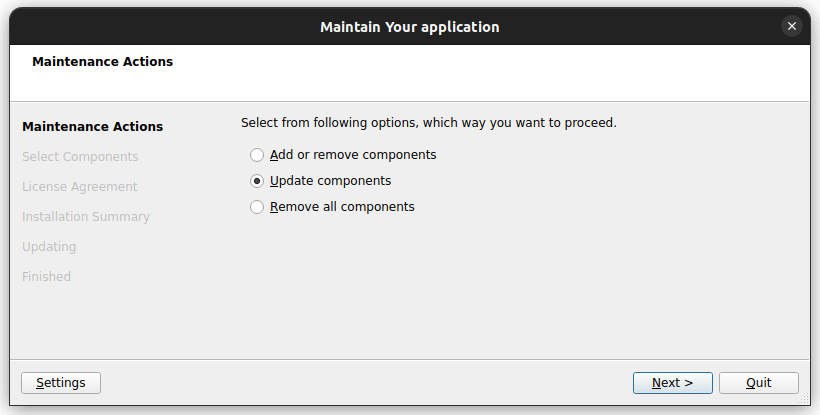
The Maintenance Tool opens with a clear and simple interface. You will see options like “Update Components” and “Add or Remove Components.” Use the menus to select the action you need. The tool shows progress and details during updates. This helps you track the update status and any important messages.
Selecting Components To Update
Selecting components to update in the Maintenance Tool for a Qt application requires careful attention. Choosing the right components ensures your application stays current and runs smoothly. This process involves checking what is already installed and deciding which parts need the latest updates.
Reviewing Installed Components
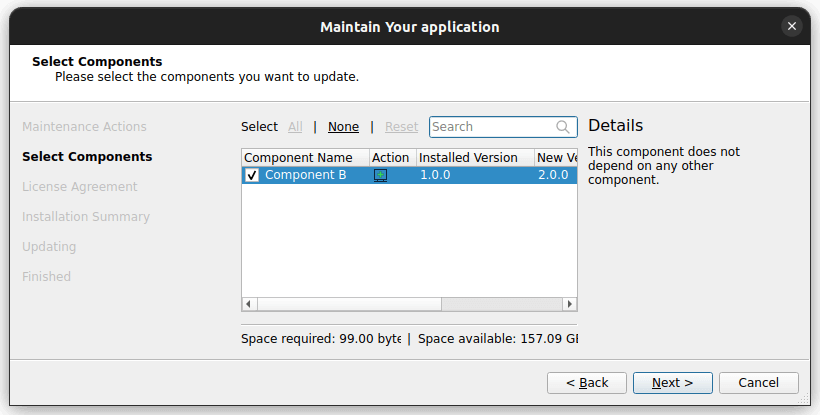
Start by opening the Maintenance Tool. It shows a list of components currently installed on your system. Each item represents a part of the Qt framework or related tools.
Look through the list carefully. Confirm which components you have. This helps avoid unnecessary updates and saves time.
- Check the version number of each component.
- Note the components important for your project.
- Identify any outdated or missing parts.
Reviewing installed components prevents mistakes during the update process. It keeps your Qt environment clean and efficient.
Choosing Components For Update
After reviewing, decide which components to update. Focus on parts that improve performance or add features you need.
Think about compatibility too. Updating core libraries can affect your existing projects.
- Select components with newer versions available.
- Prioritize critical updates for security and stability.
- Skip components that do not impact your work.
Choosing wisely helps maintain a stable development environment. It avoids unnecessary risks and keeps your application running well.
Downloading And Installing Updates
Downloading and installing updates in the Qt Maintenance Tool is a straightforward yet crucial process to keep your components running smoothly. Staying on top of updates ensures you benefit from the latest features, security patches, and performance improvements. Let’s look at how you can manage your download settings and monitor the installation progress effectively.
Managing Download Settings
Before you start downloading updates, check your download preferences in the Maintenance Tool. You can choose where to save the update files, which can be helpful if you have limited disk space on your main drive.
Adjusting bandwidth limits is another handy option. If you’re working on a shared network, setting a download speed cap prevents the update from hogging all your internet resources. Have you ever experienced a slow internet connection because an update was running in the background? Managing these settings helps avoid that.
Make sure to select only the components you actually need to update. This saves time and storage, especially if you have multiple Qt versions or modules installed. The tool lets you tick or untick specific packages before downloading.
Tracking Installation Progress
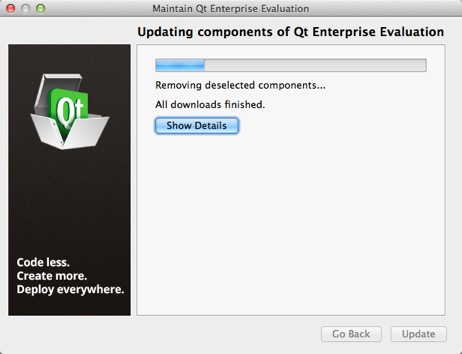
Once the download starts, the Maintenance Tool provides a clear progress bar. It shows both download and installation status, so you’re never in the dark about how much is left.
Keep an eye on any error messages or prompts that may appear during installation. Sometimes, additional permissions or actions are required to complete the update. Ignoring these can cause the process to stall or fail.
One tip from my experience: avoid running other heavy applications while updating. It reduces the chance of conflicts and speeds up the installation. You’ll notice the update finishes more smoothly when your system isn’t overloaded.
Troubleshooting Common Issues
Updating components using the Maintenance Tool in a Qt application usually runs smoothly, but sometimes issues pop up that can halt your progress. Troubleshooting these common problems quickly saves time and prevents frustration. Let’s look at practical ways you can overcome update hiccups and get back on track.
Handling Update Failures
Update failures often happen due to corrupted files or interrupted downloads. If you see error messages during the update, try restarting the Maintenance Tool first. This simple step can resolve temporary glitches.
Clearing the cache or removing partially downloaded files can also help. Navigate to the installation directory and delete any suspicious files before running the update again.
Sometimes, the Maintenance Tool itself needs an update. Check if a newer version of the tool is available and install it. This can fix bugs that prevent successful component updates.
Resolving Network Problems
Network issues are a common cause of update interruptions. If your update stalls or times out, check your internet connection immediately. Switching from Wi-Fi to a wired connection often improves stability.
Firewalls or antivirus software may block the Maintenance Tool from accessing the update servers. Temporarily disable these security measures to see if they are causing the problem.
When working behind a proxy, configure the Maintenance Tool to use the correct proxy settings. Incorrect or missing proxy details can prevent it from connecting to the internet.
Have you checked your DNS settings recently? Sometimes, changing your DNS to a public server like Google’s (8.8.8.8) can speed up or stabilize your connection during updates.
Credit: bugreports.qt.io
Verifying Component Updates
Verifying component updates is crucial after using the Maintenance Tool in a Qt application. It ensures that the update process completed successfully and the new features or fixes are properly applied. Taking time to check updated versions and test new functionalities helps avoid future issues.
Checking Updated Versions
Start by opening the Maintenance Tool. Navigate to the component list or version details section. Look for the version numbers next to each component. Confirm that the numbers match the latest release you installed.
Use this simple checklist:
- Open Maintenance Tool
- Go to Installed Components
- Find version numbers
- Compare with official update info
Verifying version numbers confirms the update applied correctly. It also helps identify any skipped or failed updates.
Testing Updated Features
After confirming versions, test the new features or fixes. Run your Qt application and focus on components you updated. Check if new options or improvements work as expected.
Follow these steps for effective testing:
- Launch the Qt application
- Use features related to updated components
- Observe any changes or improvements
- Note any errors or unusual behavior
Testing ensures the update delivers its benefits. It also helps catch problems early before affecting users.
Automating Future Updates
Automating future updates simplifies managing your Qt application components. It saves time and ensures you always have the latest features and security fixes. Setting up automation reduces manual work and helps keep your software stable and secure.
Automation also prevents missing critical updates that might affect your app’s performance. It creates a seamless experience for users and developers alike. Let’s explore how to set up update notifications and configure automatic updates using the Maintenance Tool.
Setting Up Update Notifications
Update notifications alert you when new versions are available. They help you stay informed without checking manually. The Maintenance Tool lets you enable these alerts with ease.
To set up update notifications:
- Open the Maintenance Tool on your system.
- Go to the settings or preferences menu.
- Find the update notification section.
- Enable notifications for component updates.
- Choose how often you want to receive alerts.
Notifications appear as pop-ups or messages within the tool. This keeps you aware of updates ready for installation.
Configuring Automatic Updates
Automatic updates install new versions without user action. This keeps your components current and secure. The Maintenance Tool supports configuring these automatic processes.
To configure automatic updates:
- Open the Maintenance Tool and access the update settings.
- Enable the option for automatic component updates.
- Set a schedule for updates to run, such as daily or weekly.
- Choose whether updates install silently or with notifications.
- Save your settings and exit the tool.
Automatic updates reduce downtime and manual intervention. Your application remains updated without extra effort.
Credit: doc.qt.io
Frequently Asked Questions
How Do I Access The Maintenance Tool In Qt?
To access the Maintenance Tool in Qt, locate your Qt installation directory. Inside, you’ll find the MaintenanceTool executable file. Run it to open the tool. This utility helps manage your Qt components, allowing you to update, add, or remove them efficiently.
Can I Update Qt Components Automatically?
Yes, you can set the Maintenance Tool to update components automatically. Open the tool, navigate to settings, and enable automatic updates. This ensures you always have the latest features and security updates without manual intervention.
Is It Safe To Update Qt Components?
Updating Qt components is safe and recommended for optimal performance. Updates include bug fixes, security patches, and new features. Before updating, ensure you back up your projects to avoid data loss. Following these precautions ensures a smooth update process.
What Happens If I Skip An Update?
Skipping an update might lead to compatibility issues or missed features. Regular updates ensure your Qt applications run smoothly with the latest improvements. Missing updates can also expose your system to security vulnerabilities, so it’s advisable to keep components up-to-date.
Conclusion
Updating components with the Maintenance Tool in Qt is simple and quick. Just follow the steps carefully to avoid errors. Keeping your Qt components up to date improves performance and security. Regular updates help you access new features and fix bugs.
Make it a habit to check for updates often. This way, your Qt applications run smoothly and stay reliable. Don’t skip updates; they keep your development environment healthy and efficient.