Are you struggling to install the Maintenance Tool for Kodi? You’re not alone.
This problem can stop you from keeping your Kodi running smoothly, causing frustration and wasted time. But don’t worry—there are simple fixes that can get you back on track quickly. You’ll discover easy steps to solve the installation issue and keep your Kodi working at its best.
Keep reading, and you’ll be up and running in no time.
Common Causes Of Installation Issues
Installing the Maintenance Tool for Kodi can sometimes hit unexpected roadblocks. Understanding the common causes of installation issues helps you troubleshoot quickly and get your system running smoothly. Let’s look at some frequent problems that might stop the tool from installing properly.
Compatibility Problems
Your device’s operating system and Kodi version must match the Maintenance Tool’s requirements. If you try to install a tool designed for a different Kodi version, it won’t work. For example, using a version made for Kodi 19 on Kodi 18 can cause failures.
Check if your device’s OS supports the tool. Older versions of Android or Windows might not be compatible. Have you confirmed that your system meets the tool’s minimum specifications before installing?
Corrupted Files
Sometimes the download gets interrupted or the file gets damaged, causing corruption. A corrupted installation file can prevent the tool from running or even starting installation. This often happens if your internet connection drops during download.
Try downloading the file again from a trusted source. Always compare file sizes or checksums if available to ensure the file is complete. Would you consider using a download manager to reduce the risk of corrupted files?
Network Restrictions
Network settings can block the installation process. Firewalls, VPNs, or restricted Wi-Fi networks might stop necessary connections to Kodi’s servers. This is common on public or work networks with strict security rules.
Temporarily disable VPNs or check your firewall settings to allow Kodi-related traffic. Switching to a different network, like your home Wi-Fi, can also help. Have you tested the installation on a less restrictive network to rule out these issues?

Credit: www.reddit.com
Preparing Kodi For Maintenance Tool
Before you can successfully install the Maintenance Tool on Kodi, it’s essential to prepare your app properly. Taking a few moments to clear unnecessary data, check available storage, and adjust security settings can prevent common installation issues. These simple steps make sure Kodi is ready to handle the new tool without hiccups.
Clearing Cache And Data
Cache buildup can slow Kodi down and cause installation failures. Clearing it helps free up memory and remove corrupt files that might interfere with the Maintenance Tool setup.
To clear cache and data:
- Go to your device’s Settings.
- Find the Apps or Application Manager section.
- Select Kodi, then tap on “Clear Cache” and “Clear Data.”
This process refreshes Kodi, giving it a clean slate to work from. Have you noticed Kodi running slower before? Clearing cache often fixes those sluggish moments.
Checking Storage Space
Installing new add-ons or tools requires enough free space on your device. Lack of storage can cause the installation to fail without clear error messages.
Check your storage by:
- Opening your device’s Settings.
- Navigating to Storage or Memory options.
- Confirming you have at least 100 MB of free space available.
If your storage is tight, deleting unused apps or files can help. Have you ever ignored storage warnings only to face failed installs? It’s a simple fix that saves a lot of frustration.
Enabling Unknown Sources
Kodi restricts installations from sources outside its official repository for security reasons. To install the Maintenance Tool, you must allow installations from unknown sources.
Enable this by:
- Opening Kodi and selecting the Settings gear icon.
- Going to System Settings and then selecting Add-ons.
- Turning on the toggle for “Unknown Sources.”
Be cautious with this setting—only install trusted add-ons. Have you ever hesitated to enable unknown sources? Think of it as unlocking more possibilities while staying in control.
Step-by-step Fixes To Install The Tool
Facing trouble installing the Maintenance Tool for Kodi can be frustrating, but there are clear steps you can take to resolve the issue. These fixes focus on common problems that block the installation and provide simple ways to get the tool up and running. Let’s dive into practical solutions that you can try right now.
Reinstalling The Maintenance Tool
Sometimes the installation file gets corrupted or the process is interrupted, causing the tool not to install correctly. Try deleting the current version of the Maintenance Tool from Kodi and reinstall it from a reliable source.
Make sure you clear Kodi’s cache before reinstalling to avoid leftover files causing conflicts. This quick action often fixes minor glitches and refreshes the installation environment.
Updating Kodi To Latest Version
Older versions of Kodi might not support the latest Maintenance Tool. Check if you’re running the newest Kodi update by visiting the official Kodi website or your device’s app store.
Updating Kodi can improve compatibility and security, which often resolves installation failures. Have you noticed if your Kodi has been running slower or acting up? That might be a sign it’s time for an update.
Using Alternative Repositories
If the main repository hosting the Maintenance Tool is down or outdated, you won’t be able to install the tool through it. Try adding alternative repositories that also offer the Maintenance Tool.
Some popular alternatives include TVAddons or KodiBae, which frequently update their repositories. Adding these can give you access to a wider range of tools and reduce your chances of installation errors.
Troubleshooting Advanced Errors
Troubleshooting advanced errors with the Kodi maintenance tool requires patience and a clear approach. These errors often stem from hidden issues like broken dependencies, restricted repository access, or security software interference. Understanding these causes helps fix installation problems faster and keeps Kodi running smoothly.
Focus on each error type separately. This method makes solving complex problems easier. Below are common advanced issues and how to resolve them effectively.
Fixing Dependency Failures
Dependency failures happen when Kodi cannot find required add-ons or files. These missing components stop the maintenance tool from installing.
- Check for updates to Kodi and the add-ons. Outdated versions cause conflicts.
- Clear Kodi’s cache. Old data may block dependencies.
- Remove broken or incomplete add-ons. They interfere with new installations.
- Install dependencies manually from trusted sources if automatic installation fails.
Resolving Repository Access Issues
Repository access problems occur when Kodi cannot reach the source server. This blocks downloads and updates.
- Verify the repository URL is correct and active.
- Test internet connection stability. Poor connection causes timeouts.
- Check if the repository is temporarily down or removed.
- Switch to a different repository mirror if available.
Adjusting Firewall And Antivirus Settings
Security programs may block Kodi’s maintenance tool from installing files. Firewalls and antivirus software often restrict app access.
- Temporarily disable firewall or antivirus during installation.
- Add Kodi and its folders to the software’s exception list.
- Allow Kodi to communicate through both private and public networks.
- Restart Kodi after making security changes to apply them properly.
Preventing Future Installation Problems
Preventing future installation problems with Kodi’s maintenance tool saves time and frustration. Small habits can keep your system stable and functional. Staying proactive helps avoid common errors and glitches.
Regular Kodi Updates
Keep Kodi updated to the latest version. Updates fix bugs and improve compatibility. New features often enhance performance and security. Check for updates often to ensure smooth operation.
Safe Add-on Management
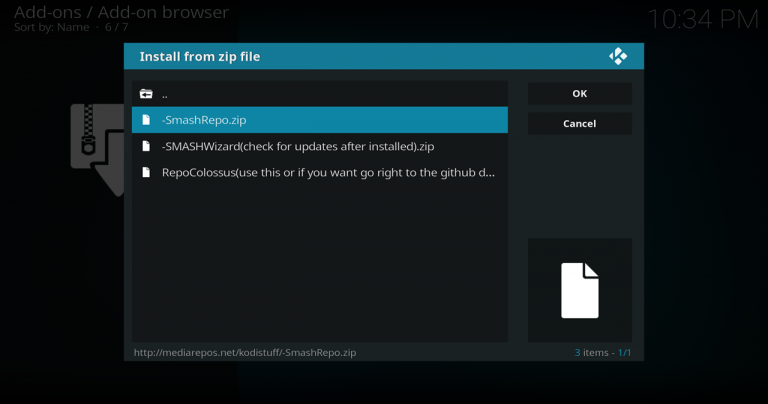
Only install add-ons from trusted sources. Unofficial add-ons may cause errors or harm your device. Remove unused or faulty add-ons regularly. Avoid installing too many add-ons at once to prevent conflicts.
Backup And Restore Practices
Create backups before making major changes. Backups save settings, add-ons, and media libraries. Restore from backups if problems occur after updates or new installs. Use reliable backup tools designed for Kodi.
Credit: kinkeadtech.com

Credit: www.reddit.com
Frequently Asked Questions
Why Can’t I Install Maintenance Tool On Kodi?
If you’re unable to install the Maintenance Tool, it might be due to outdated Kodi versions or incompatible add-ons. Ensure your Kodi is updated to the latest version. Check for any third-party add-ons that might be causing conflicts. Removing problematic add-ons often resolves installation issues.
How Do I Update Kodi For Maintenance Tool?
To update Kodi, visit the official Kodi website and download the latest version. Follow the installation prompts to complete the update. Updating Kodi often resolves compatibility issues with add-ons like the Maintenance Tool.
Are There Alternatives To Maintenance Tool For Kodi?
Yes, there are alternatives to the Maintenance Tool. Consider using add-ons like Ares Wizard or Indigo. These offer similar maintenance functionalities. They help in clearing cache, managing add-ons, and optimizing Kodi performance.
Does Clearing Kodi Cache Help With Installation?
Yes, clearing the Kodi cache can resolve installation problems. Cache buildup might hinder new installations. Navigate to your Kodi settings, find the cache clearing option, and execute it. This simple step often resolves many installation-related issues.
Conclusion
Facing issues installing the Maintenance Tool for Kodi can be frustrating. Try checking your internet connection and Kodi version first. Clear cache and restart your device to fix common errors. Also, ensure you download the tool from a trusted source.
Sometimes, a simple update solves many problems. Keep your Kodi app and add-ons up to date for best results. With patience and these steps, you can get the tool working soon. Stay persistent and enjoy a smoother Kodi experience.