Are you tired of your computer running slow or crashing at the worst moments? You might not realize it, but the right computer maintenance tools can make a huge difference in keeping your device fast, safe, and reliable.
These tools help you clean up junk files, fix errors, protect against viruses, and boost overall performance. You’ll discover exactly what computer maintenance tools are and how they can save you time, money, and frustration. Keep reading to learn how to take control of your computer’s health and enjoy a smoother, hassle-free experience every day.
Importance Of Computer Maintenance
Regular computer maintenance keeps devices running smoothly and extends their lifespan. It prevents slow performance, crashes, and data loss. Simple upkeep can save time and money by avoiding costly repairs.
Maintaining a computer ensures security against viruses and malware. It helps keep software updated and protects personal information. Clean systems use less energy and reduce hardware wear.
Improves System Performance
Maintenance removes junk files and frees up storage space. It optimizes startup processes and speeds up programs. A well-maintained computer responds faster and works more efficiently.
Prevents Hardware Failures
Cleaning dust from components reduces overheating risks. Regular checks catch hardware issues early. Fixing small problems prevents major breakdowns and costly replacements.
Enhances Security
Updating software patches vulnerabilities. Scanning for malware protects against threats. A secure computer keeps personal and sensitive data safe.
Extends Device Lifespan
Routine care reduces wear and tear on parts. Proper maintenance delays the need for new devices. This saves money and reduces electronic waste.
Types Of Maintenance Tools
Maintenance tools help keep your computer running smoothly and extend its lifespan. They come in different types, each designed to tackle specific issues. Understanding these tools can save you time and frustration when your device starts acting up.
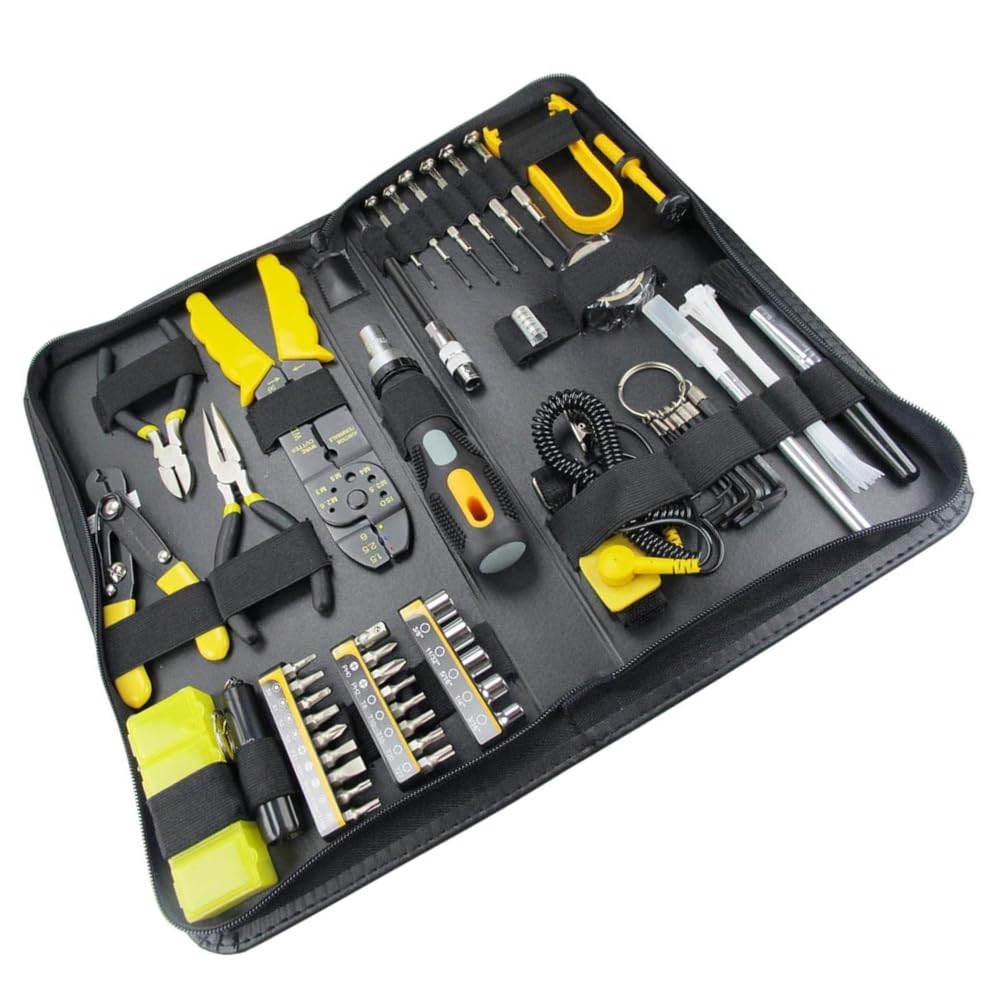
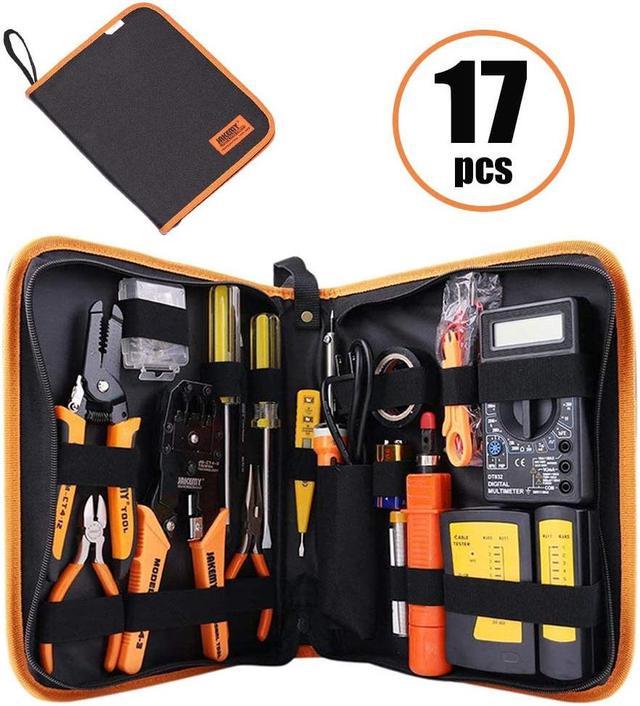
Hardware Tools
Hardware tools are physical devices that help you inspect, clean, and repair your computer components. Using the right hardware tools prevents damage and improves performance.
- Screwdrivers:Essential for opening your computer case and accessing internal parts safely.
- Compressed Air Can:Removes dust from fans, vents, and circuit boards to prevent overheating.
- Thermal Paste:Helps maintain efficient heat transfer between your CPU and its cooler.
- Anti-Static Wrist Strap:Protects your hardware from static electricity during repairs.
Have you ever experienced unexpected shutdowns? Dust buildup or loose cables inside your computer might be the culprit. Regular use of these hardware tools can prevent such issues.
Software Tools
Software tools are programs designed to diagnose, clean, and optimize your computer’s operating system and applications. They often run routine checks and fix problems you might not notice.
- Antivirus Software:Protects your system from malware and viruses that can slow down or damage your PC.
- Disk Cleanup Utilities:Delete unnecessary files to free up space and improve speed.
- Registry Cleaners:Fix errors in the Windows registry to enhance system stability.
- Driver Updaters:Ensure all hardware drivers are current, avoiding compatibility issues.
Have you checked when you last updated your drivers or cleaned up temporary files? Neglecting software maintenance can cause your computer to lag unexpectedly. Using these tools regularly keeps your system in top shape without much effort.
Antivirus And Anti-malware Software
Antivirus and anti-malware software protect your computer from harmful threats. These tools scan files and programs for viruses, spyware, ransomware, and other malware. They help keep your data safe and your system running smoothly. Regular updates ensure they catch new threats quickly.
Popular Antivirus Programs
- Norton Antivirus
- McAfee Total Protection
- Kaspersky Anti-Virus
- Bitdefender Antivirus Plus
- Avast Free Antivirus
- Windows Defender
These programs vary in features and pricing. Some offer real-time protection, firewall control, and system optimization. Choose one that fits your computer needs and budget.
Benefits Of Anti-malware Tools
- Detects and removes harmful software quickly
- Protects personal information from theft
- Prevents slow computer performance caused by malware
- Blocks suspicious websites and downloads
- Offers peace of mind while browsing the internet
Anti-malware tools work in the background to keep threats away. They reduce risks and improve system stability. Using these tools is essential for safe computer use.

Credit: us.amazon.com
Disk Cleanup Utilities
Disk cleanup utilities are essential tools designed to help you manage and maintain your computer’s storage efficiently. These utilities scan your hard drive for unnecessary files, such as temporary files, system caches, and leftover installation files, then help you remove them safely. Using these tools regularly can significantly improve your system’s performance and free up valuable space.
Freeing Up Space
Disk cleanup utilities target files that accumulate over time without serving any purpose. These include temporary internet files, system error reports, and outdated backups. Removing these files can reclaim gigabytes of storage, especially on systems with limited disk space.
Have you ever noticed your computer slowing down even when you haven’t installed anything new? Often, this sluggishness is due to cluttered storage. Clearing out junk files can speed up your system and reduce the risk of crashes.
Automated Cleanup Options
Many disk cleanup tools offer automated settings that scan and clean your system at scheduled intervals. This means you don’t have to remember to perform maintenance manually. These automated options help keep your system running smoothly without interrupting your workflow.
Some utilities allow you to customize what gets deleted, giving you control over the cleanup process. You can choose to keep certain files or exclude folders that contain important data. This flexibility ensures your cleanup is both efficient and safe.
Defragmentation Tools
Defragmentation tools help keep your computer’s hard drive fast and efficient. They reorganize data so your system reads files quicker. Over time, files get scattered in pieces across the disk. This slows down your computer and makes programs lag. Defragmentation tools fix this by putting related pieces together. This process improves overall speed and performance.
How Defragmentation Works
When you save or delete files, data spreads out across the hard drive. This is called fragmentation. It causes the hard drive to work harder to access files. Defragmentation tools scan the disk and find fragmented files. They then move these pieces so they sit next to each other. This reduces the time the drive spends searching for data. The result is faster file access and smoother system operation.
Best Defragmentation Software
- Windows Defragmenter:Built-in tool, easy to use, no extra downloads needed.
- Defraggler:Free and simple, offers detailed reports and quick defrag options.
- Smart Defrag:Automatically runs in the background to keep disks optimized.
- Auslogics Disk Defrag:Fast, with a user-friendly interface and scheduled defragmentation.
- O&O Defrag:Offers advanced features for deeper defragmentation and optimization.

Credit: agrofoodnews.com
System Update Managers
System Update Managers play a crucial role in keeping your computer running smoothly and securely. These tools help manage and install updates for your operating system and software applications. Without them, your device might miss important patches that fix bugs or close security gaps.
Keeping Software Up-to-date
Regular updates are essential for your computer’s performance and safety. System Update Managers ensure you have the latest versions of software, which often include new features and security improvements. Ignoring updates can leave your system vulnerable to malware and crashes.
Have you ever delayed an update only to face unexpected software issues later? That’s a common problem. Staying current with updates can prevent these headaches and keep your system running efficiently.
Automated Update Solutions
Many System Update Managers offer automation, so you don’t have to check for updates manually. They can download and install updates in the background while you focus on your work. This convenience saves time and reduces the risk of missing critical updates.
Some tools even allow you to schedule updates at specific times to avoid interruptions. This means your system stays protected without disrupting your workflow. Wouldn’t it be easier if your computer took care of itself?
Backup Solutions
Backup solutions are essential tools in computer maintenance. They protect your important files and data from unexpected loss due to hardware failure, theft, or accidental deletion. Having reliable backups gives you peace of mind and ensures you can quickly recover your data whenever needed.
Cloud-based Backups
Cloud-based backups store your data on remote servers accessed through the internet. This means your files are safe even if your computer is damaged or lost. Services like Google Drive, Dropbox, and OneDrive offer easy setup and automatic syncing, so your backup stays current without extra effort.
One advantage of cloud backups is accessibility. You can retrieve your files from any device, anywhere in the world. However, it’s important to choose a provider with strong security measures to keep your data private.
External Drive Backups
External drive backups involve copying your data to a physical device like a USB flash drive, external hard drive, or SSD. These backups are stored locally, giving you full control over your data without relying on internet access.
Using external drives is a great option if you want to avoid monthly subscription fees of cloud services. Just remember to keep the drive in a safe place and update your backups regularly to avoid losing recent files.
Registry Cleaners
Registry cleaners are a popular type of computer maintenance tool designed to scan and fix issues within your PC’s registry. The registry is like a database that stores settings and options for your operating system and installed programs. Over time, leftover entries from uninstalled software or corrupted data can clutter the registry, potentially slowing down your computer or causing errors.
Using a registry cleaner can help tidy up these unnecessary entries, improving your PC’s performance and stability. However, not all registry cleaners work the same way, and some might even cause harm if they delete important files. Understanding the role of the registry and knowing how to choose a trustworthy cleaner is essential for keeping your PC healthy.
Role Of Registry In Pc Health
The registry holds critical information that your computer needs to run smoothly. It stores settings for hardware, software, user preferences, and more.
If the registry becomes cluttered with invalid or outdated entries, your system can experience slowdowns, crashes, or error messages. It’s like having a filing cabinet full of papers that are no longer relevant — finding the right information takes longer and causes confusion.
Keeping your registry clean can reduce system errors and speed up boot times. But remember, the registry is sensitive. Deleting the wrong entry might lead to software malfunctions or system instability.
Choosing Reliable Registry Cleaners
Not every registry cleaner is safe or effective. You want a tool that carefully scans and only removes entries that are truly unnecessary.
Look for cleaners with good reputations and positive user reviews. Check if they offer backup options so you can restore your registry if something goes wrong.
Some popular and reliable registry cleaners include:
- CCleaner:Easy to use with backup features.
- Wise Registry Cleaner:Offers automatic scanning and safe cleaning.
- Auslogics Registry Cleaner:Known for its clear interface and detailed scan results.
Always avoid cleaners that promise unrealistic speed boosts or claim to fix all PC problems instantly. Ask yourself: how often do you really clean your registry? Could a scheduled scan with a trusted tool help you avoid future headaches?
Performance Monitoring Tools
Performance monitoring tools are essential for keeping your computer running smoothly. They help you watch how your system behaves in real time, so you can spot issues before they turn into major problems. These tools give you detailed insights into CPU usage, memory consumption, disk activity, and network traffic.
Tracking System Performance
Tracking system performance means keeping an eye on the key metrics that affect your computer’s speed and responsiveness. Tools like Task Manager on Windows or Activity Monitor on Mac display real-time data about which applications use the most resources.
You might notice your system slowing down during heavy multitasking. By observing CPU and memory usage, you can identify if a specific program is causing the lag. Monitoring your disk activity helps you understand if slow read/write speeds are behind the performance drop.
Analyzing Bottlenecks
Bottlenecks happen when one part of your system limits the overall speed. Performance monitoring tools help you pinpoint these slowdowns quickly.
For example, if your CPU is running at 100% but your RAM usage is low, the processor is your bottleneck. On the other hand, if your disk usage maxes out while CPU usage is low, your storage device may be the culprit.
Have you ever wondered why your games or software freeze unexpectedly? Analyzing bottlenecks helps you answer that and decide whether upgrading hardware or closing background apps will improve your system.
Credit: www.newegg.com
Best Practices For Using Maintenance Tools
Using computer maintenance tools correctly helps keep your system fast and secure. Following best practices ensures these tools work well and protect your device from damage. Proper use avoids common problems and extends your computer’s life.
Scheduling Regular Maintenance
Set specific times to run maintenance tools. Regular checks prevent issues before they grow. Daily or weekly scans for viruses and junk files keep your system clean. Automate tasks like disk cleanup and updates when possible. Consistency saves time and avoids surprises.
Avoiding Over-reliance On Tools
Maintenance tools help but cannot fix everything. Learn basic troubleshooting and manual fixes too. Back up important files regularly in case tools fail. Avoid running multiple tools at once to prevent conflicts. Use tools as part of a wider care routine, not the only solution.
Frequently Asked Questions
What Are Computer Maintenance Tools Used For?
Computer maintenance tools help optimize system performance. They fix errors, remove malware, clean junk files, and improve speed. These tools ensure your computer runs smoothly and prevents future issues.
Which Types Of Computer Maintenance Tools Exist?
Common types include antivirus software, disk cleanup utilities, defragmenters, driver updaters, and system optimizers. Each tool targets specific areas to enhance computer health and efficiency.
How Often Should I Use Computer Maintenance Tools?
Regular use is recommended, ideally weekly or monthly. Frequent maintenance prevents slowdowns, crashes, and security risks, keeping your system reliable and responsive.
Can Computer Maintenance Tools Improve Pc Speed?
Yes, these tools remove unnecessary files and fix errors that slow your computer. Optimizing system resources boosts overall speed and responsiveness significantly.
Conclusion
Computer maintenance tools help keep your device fast and safe. They fix errors, clean junk files, and protect from viruses. Using these tools often improves your computer’s life and performance. Simple steps like running scans and updates make a big difference.
Everyone with a computer can benefit from these easy tools. Start using them today for a smoother experience tomorrow. Small efforts now prevent bigger problems later. Your computer will thank you.